1. Create your proposal
Click the "create a proposal" button
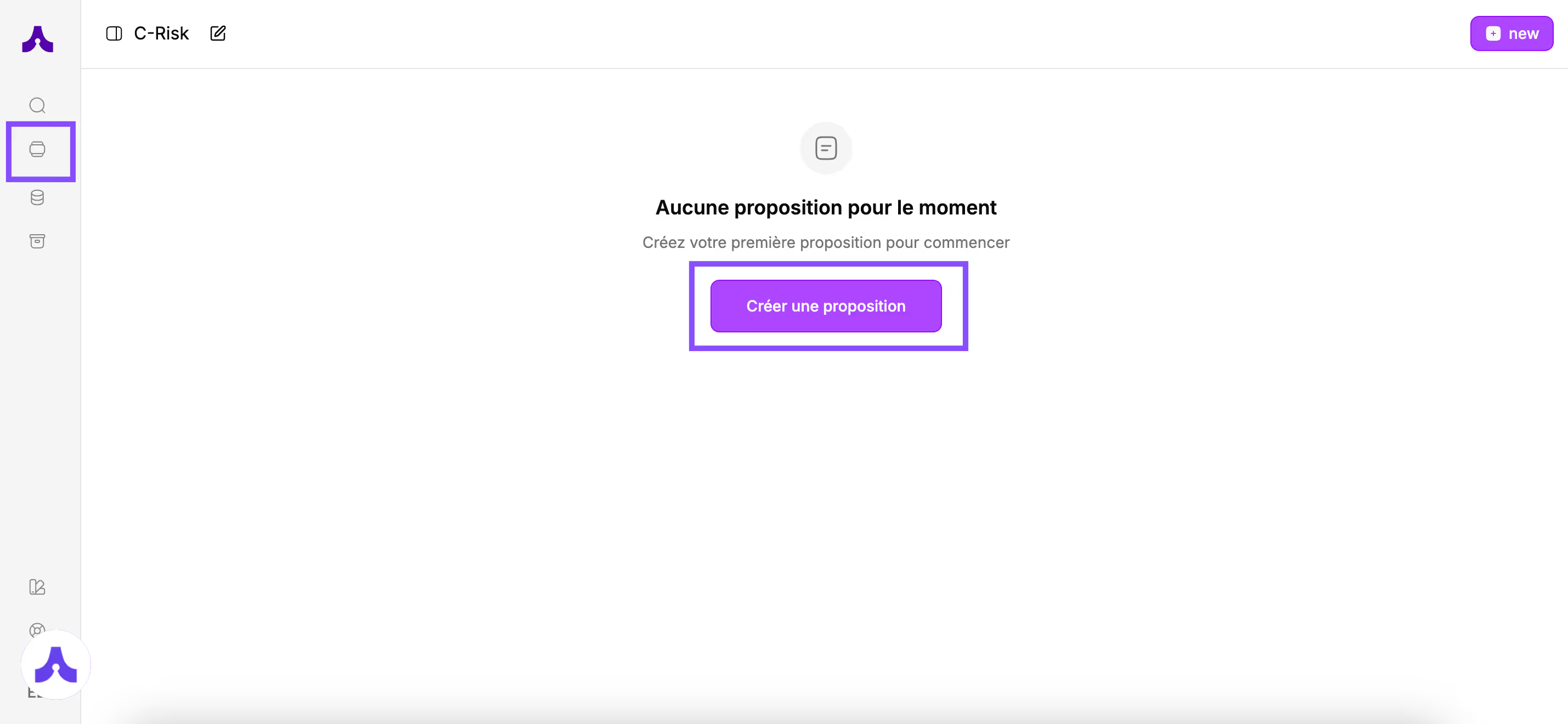
A window appears with 2 fields to fill in:
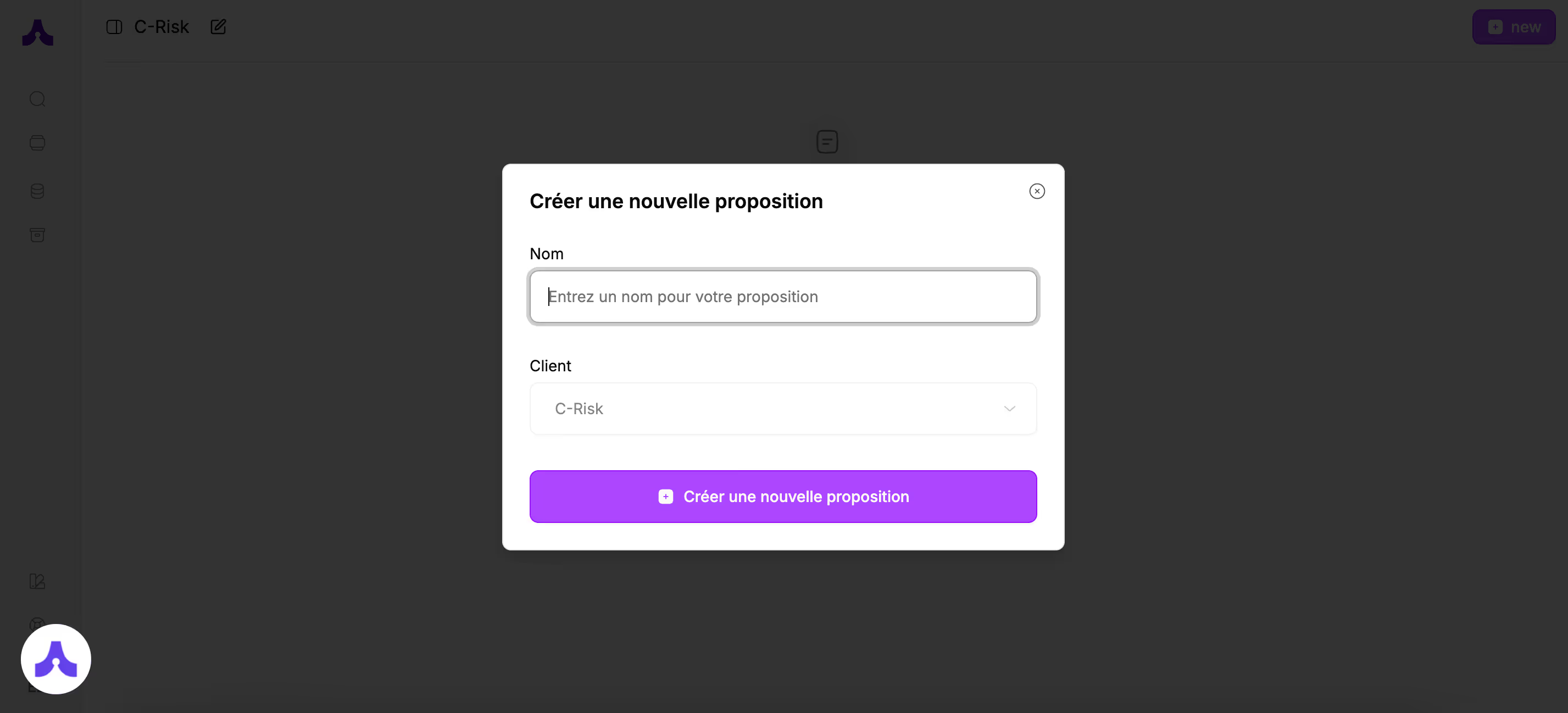
Enter :
- The name of your proposal and
- The client for whom you are creating the proposal
Then click the "Create a new proposal" button
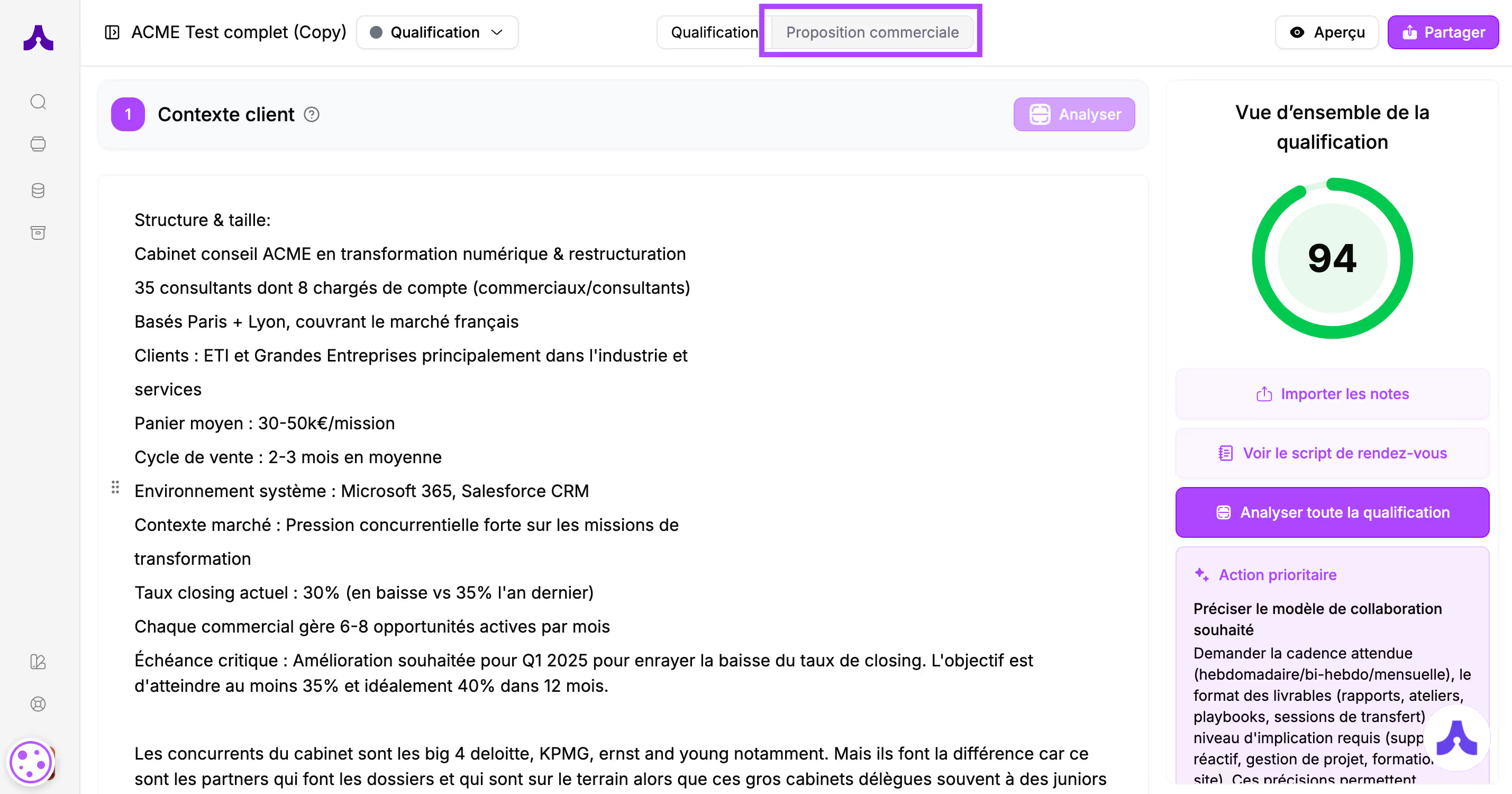
🔍Zoom on the qualification interface
You are now in the space dedicated to building your sales proposal.
The screen is divided into several parts:
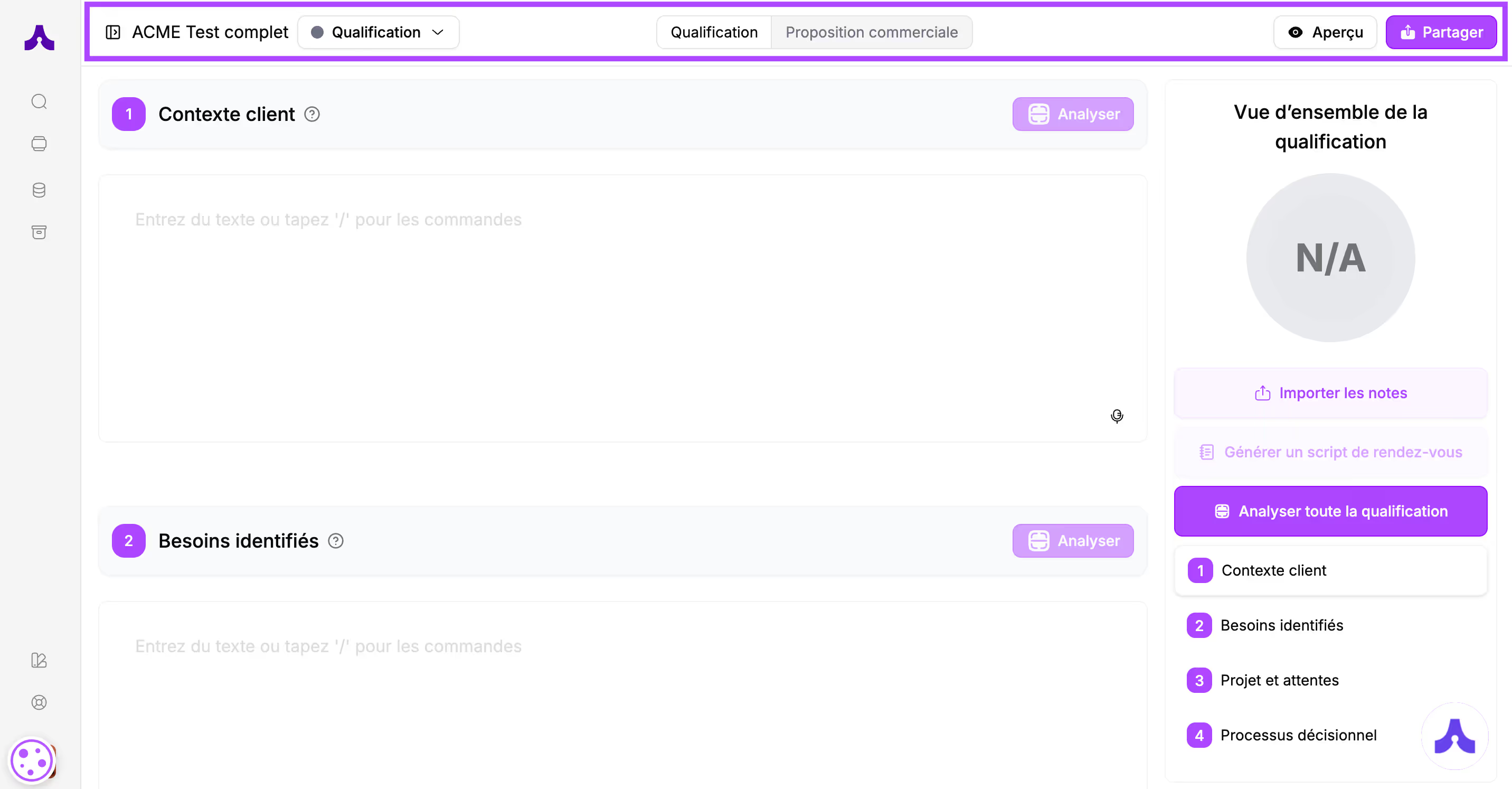
- A bar at the top of the screen where you will find:The name of the proposal you are working on,The status of the proposal,2 clickable buttons: "Qualification" which manages the qualification of the prospect's needs and challenges, and a "Content" button which will be used to build the sales proposalA "Preview" button that will allow you to see the proposal's renderingA "Share" button to send the proposal to the prospect
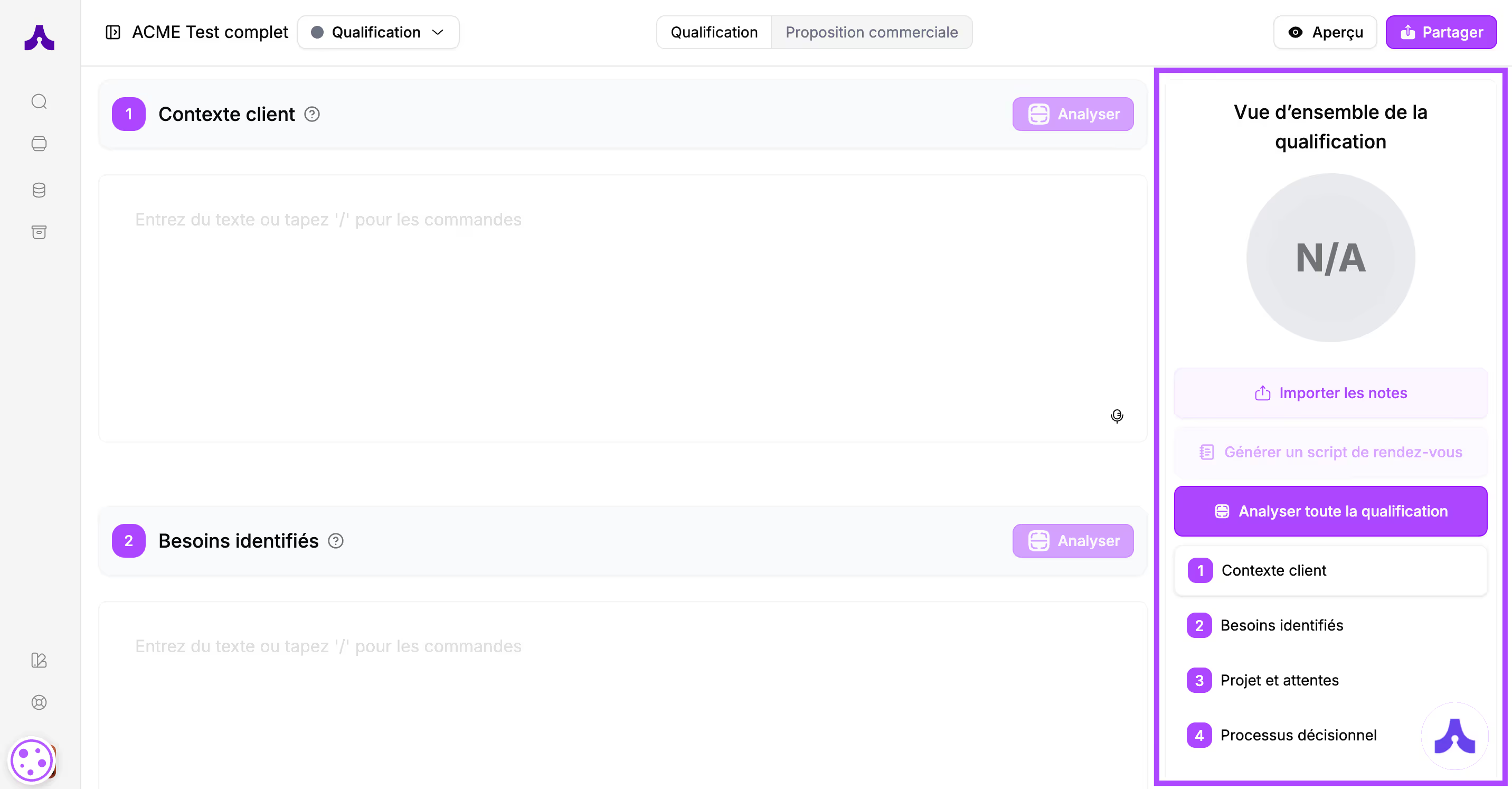
- A sidebar on the right: this is the analysis space for your qualification
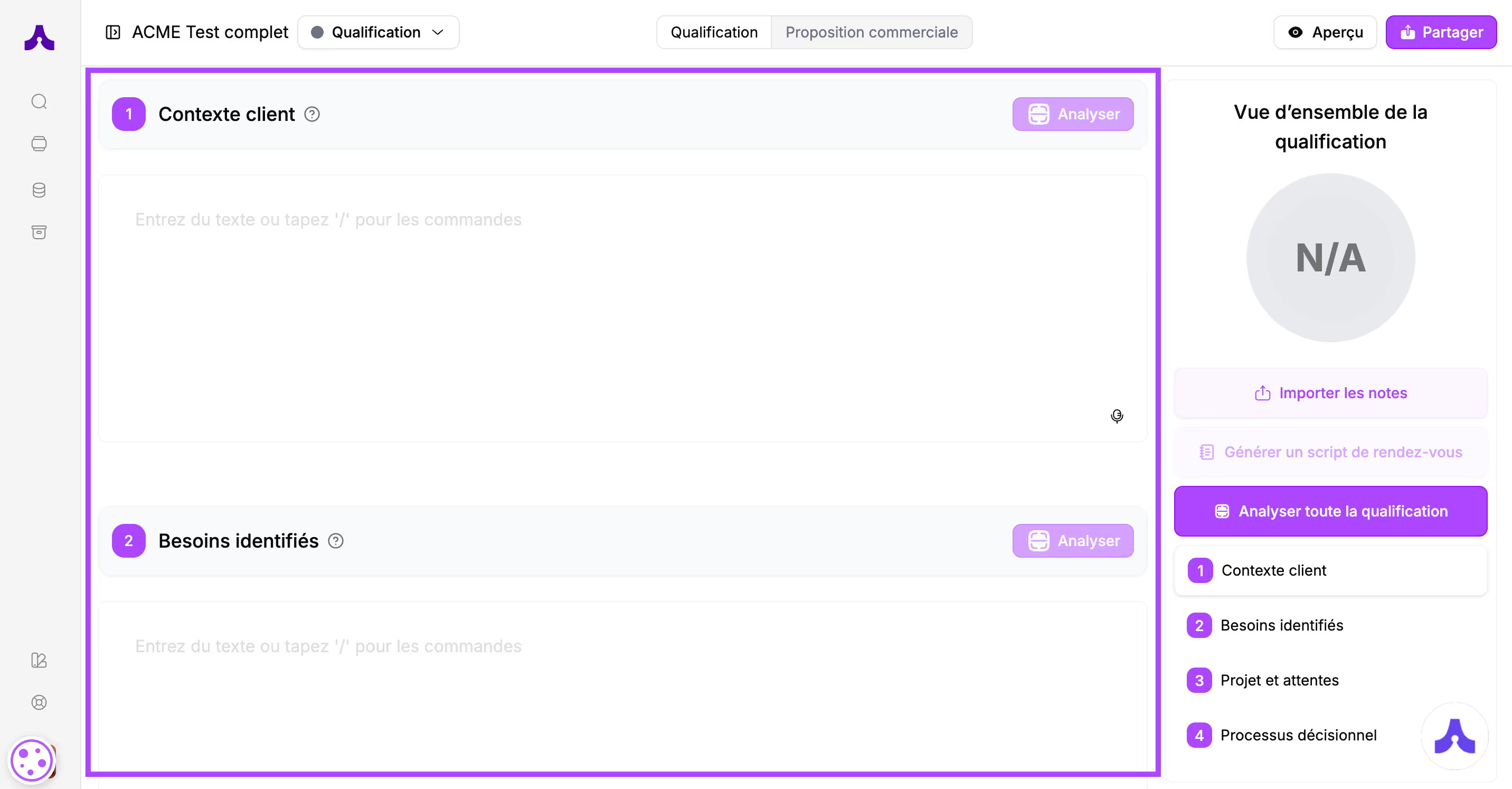
- The rest of the screen (3/4 of the screen, on the left side): this is where you will put your meeting notes
2. Complete the 4 qualification sections
You will fill in the qualification sections to frame your prospect's needs.
The screen offers 4 sections: Client context, Identified needs, Project and expectations, and Decision-making process.
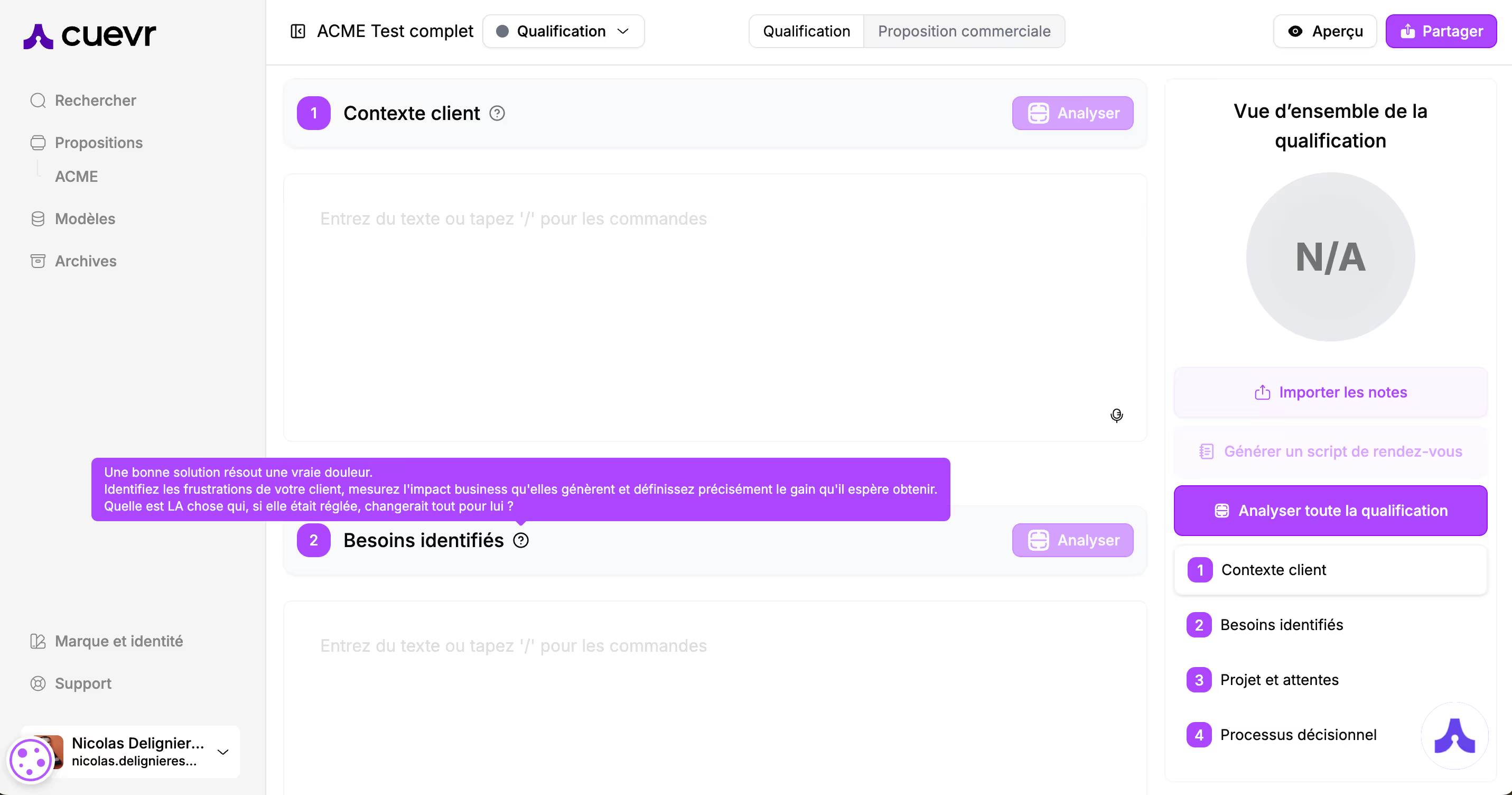
Tooltips are positioned next to each section to guide you. Hover your cursor over the tooltip to display the help text.
You have several options to fill in your qualification:
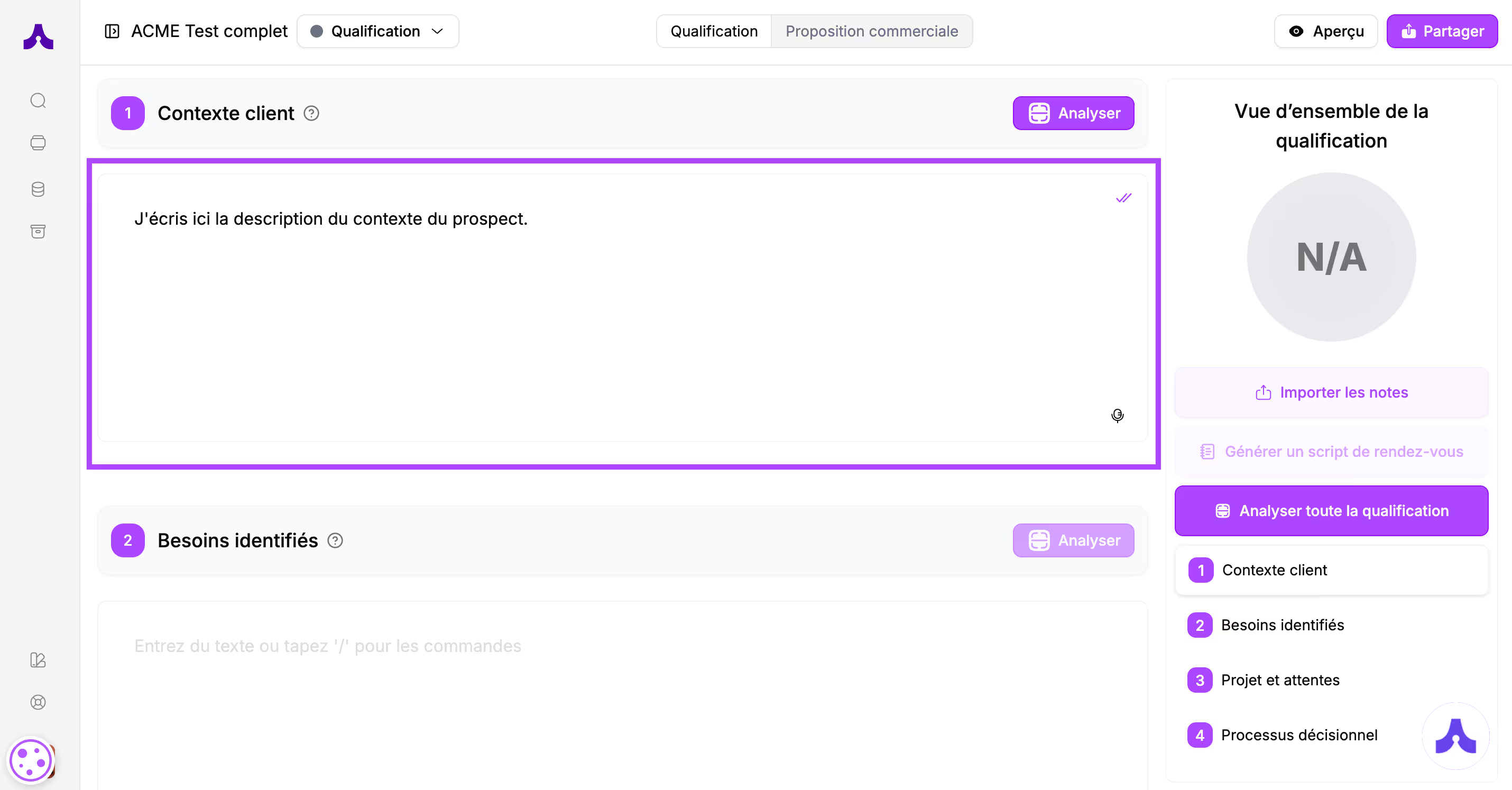
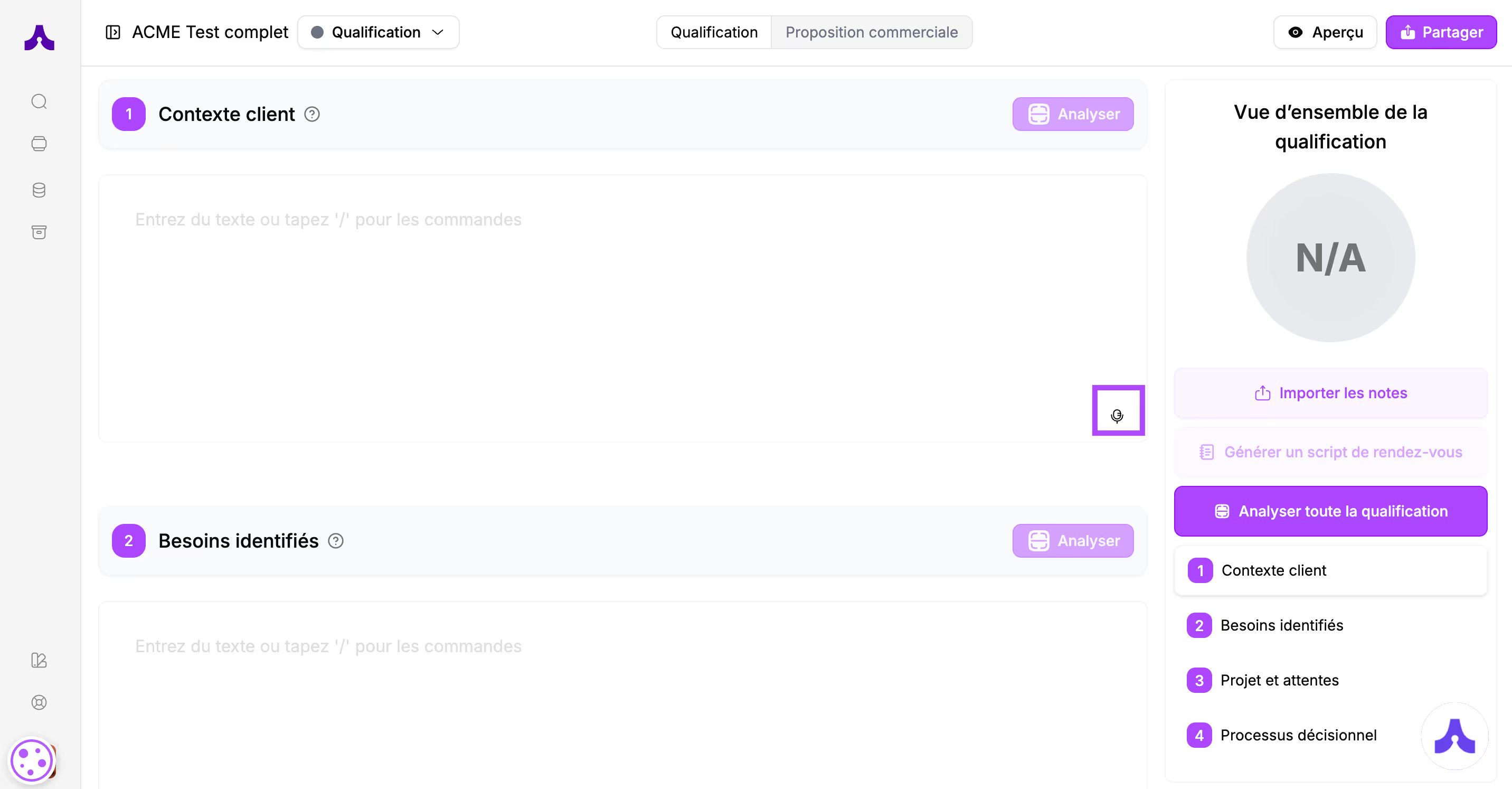
- Write the content in the section: click in the section and write your content
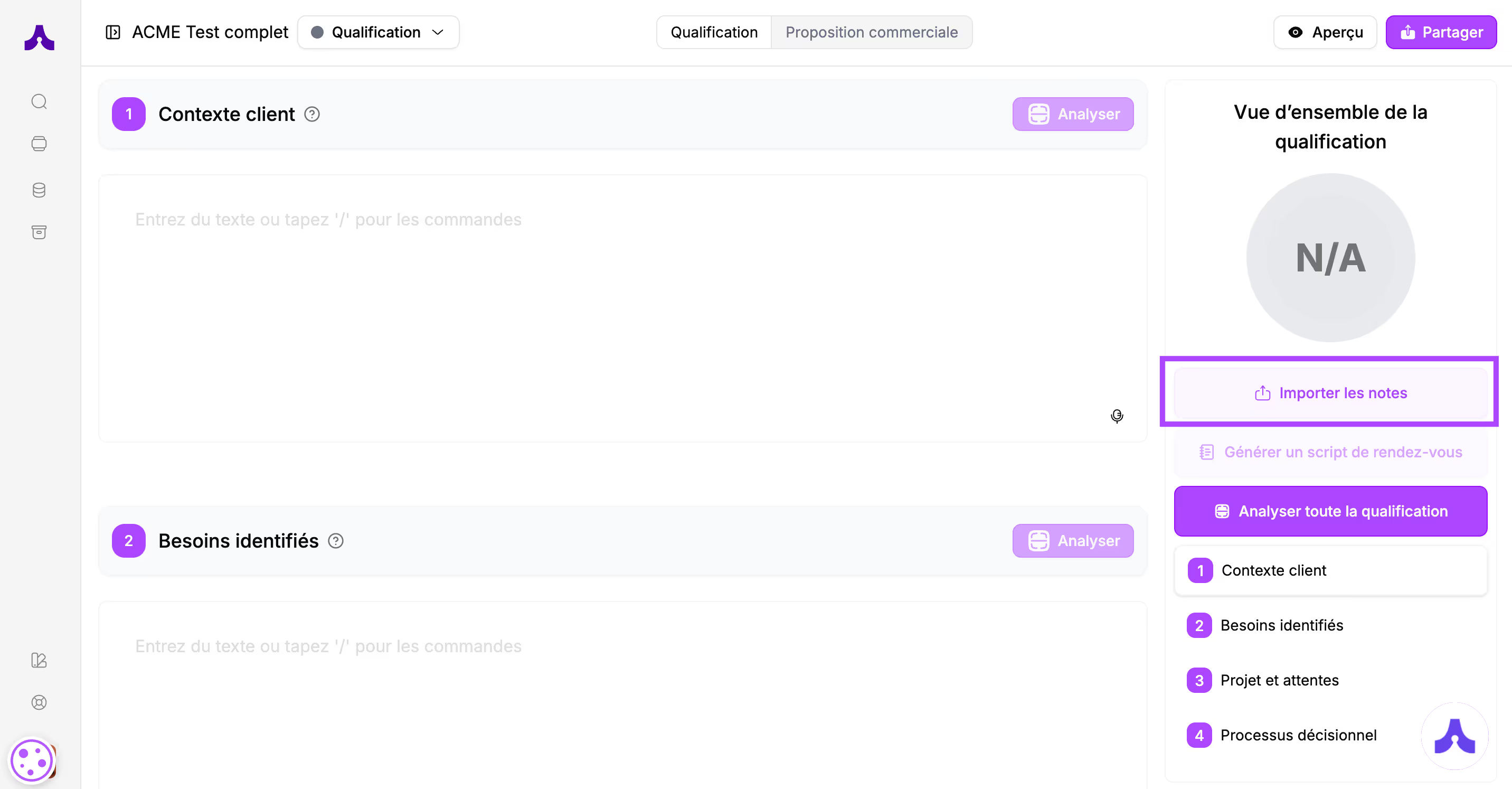
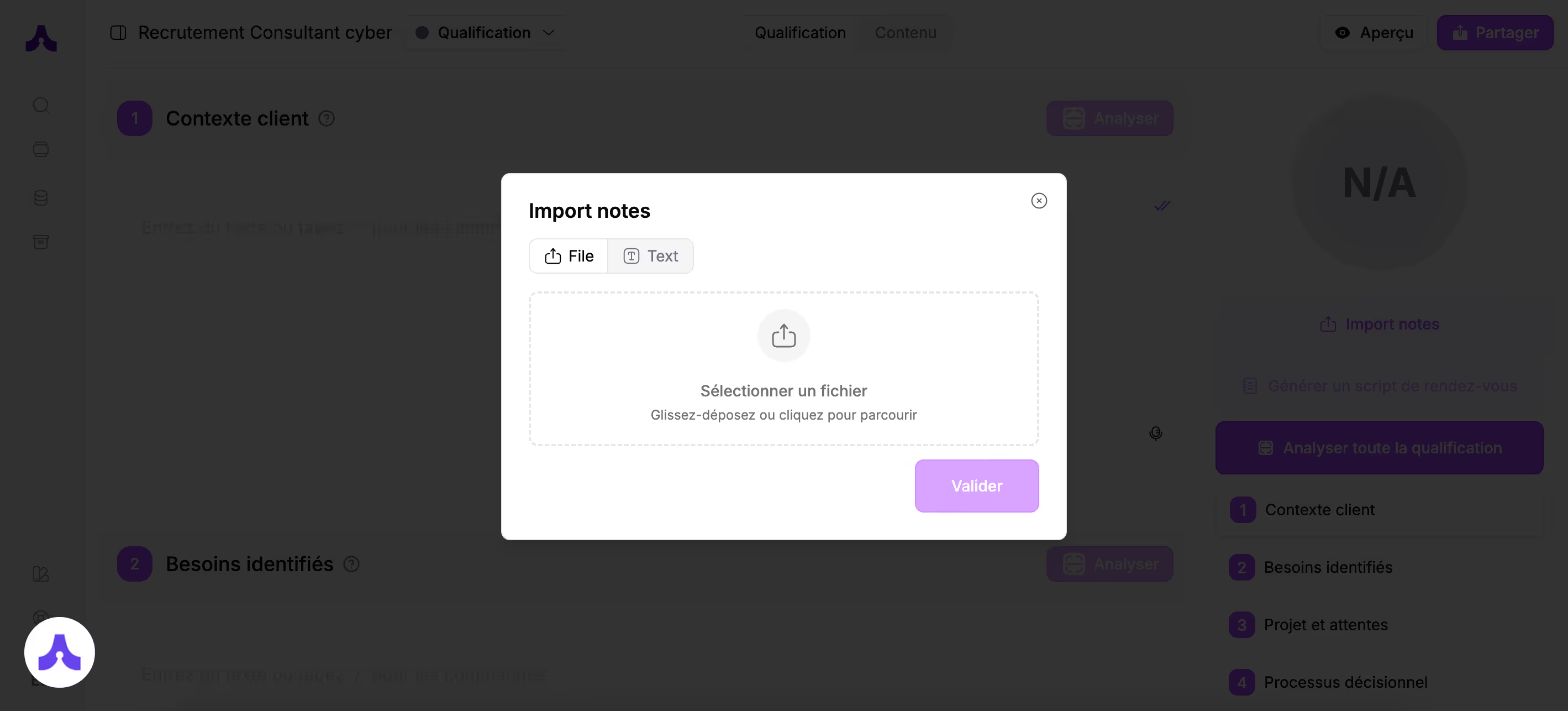
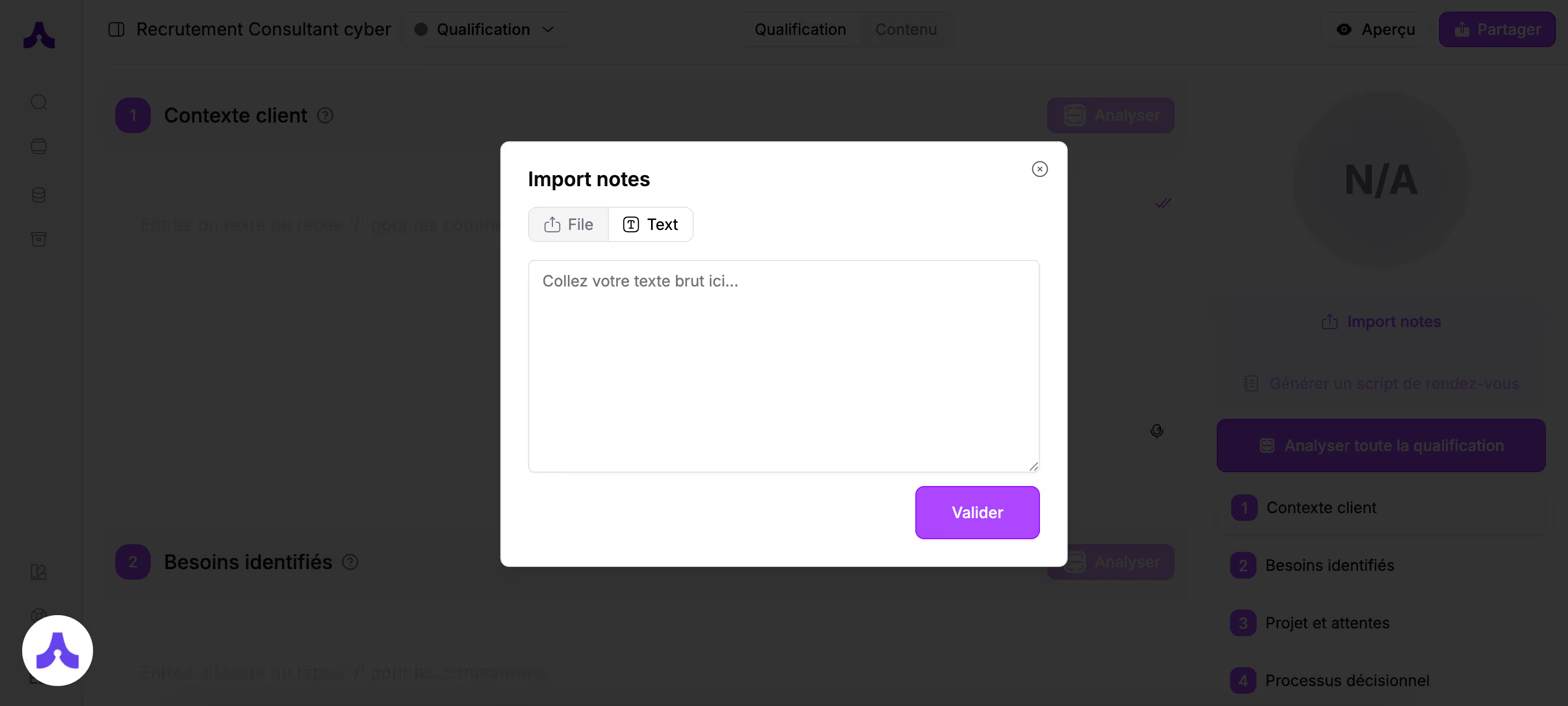
- Import your notes: upload the document containing your meeting notes or copy them.
Cuevr will take care of distributing the content into each section
- Voice dictation: click the microphone, dictate the content for the section, and click the microphone again to stop recording. The text appears automatically.
3. Launch the analysis and improve the qualification
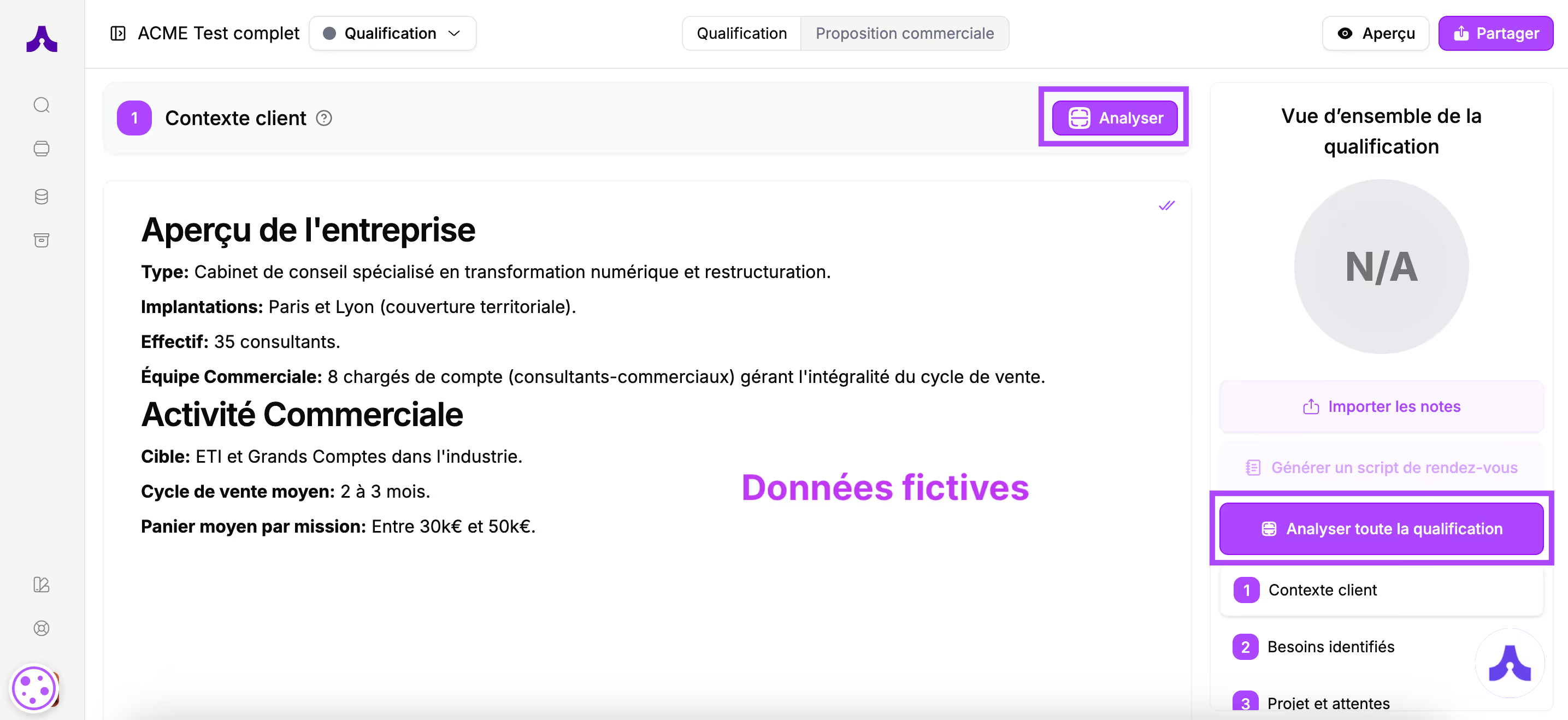
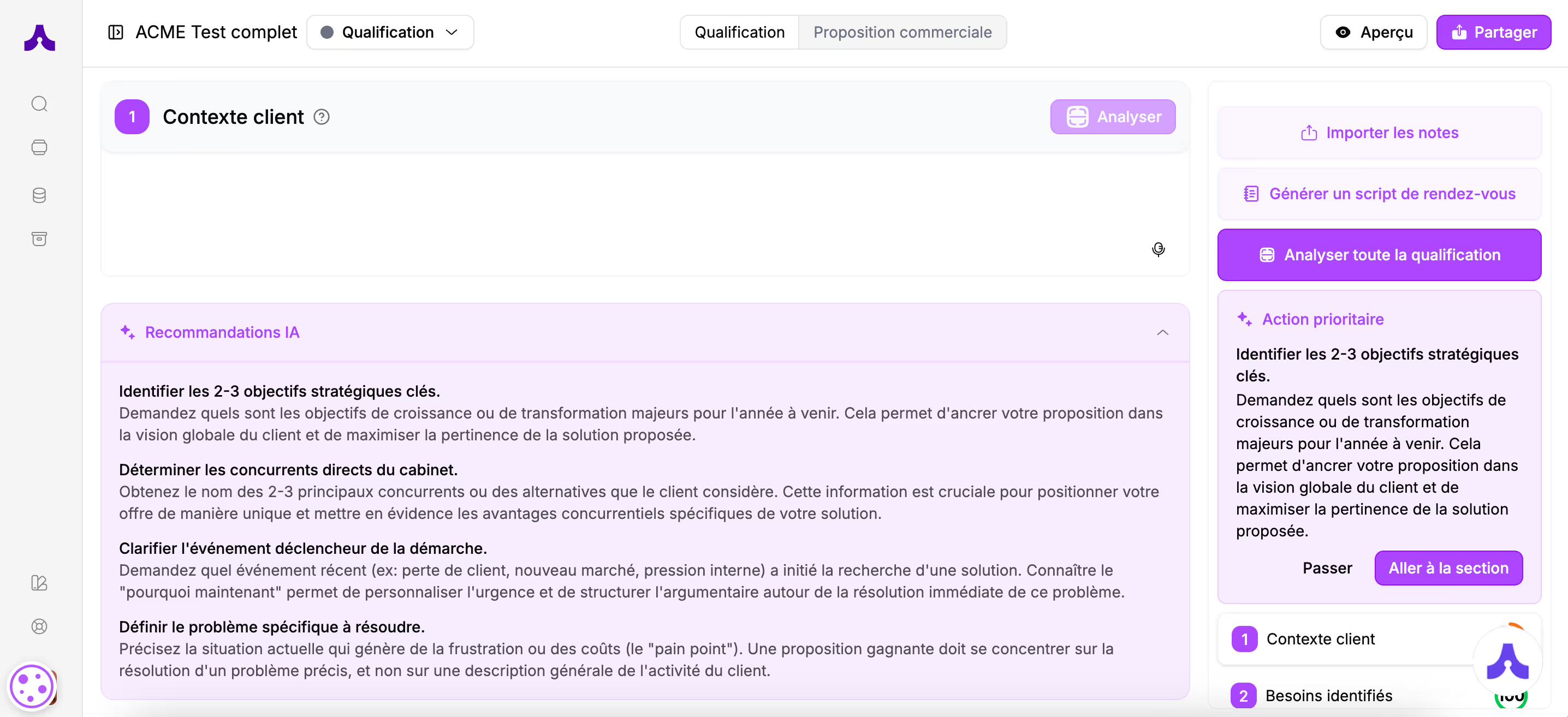
Once you have completed the sections, launch the analysis.You can analyze section by section by clicking the "analyze" button linked to the section you want to analyze, or analyze all sections by clicking the "Analyze all qualification" button on the right.
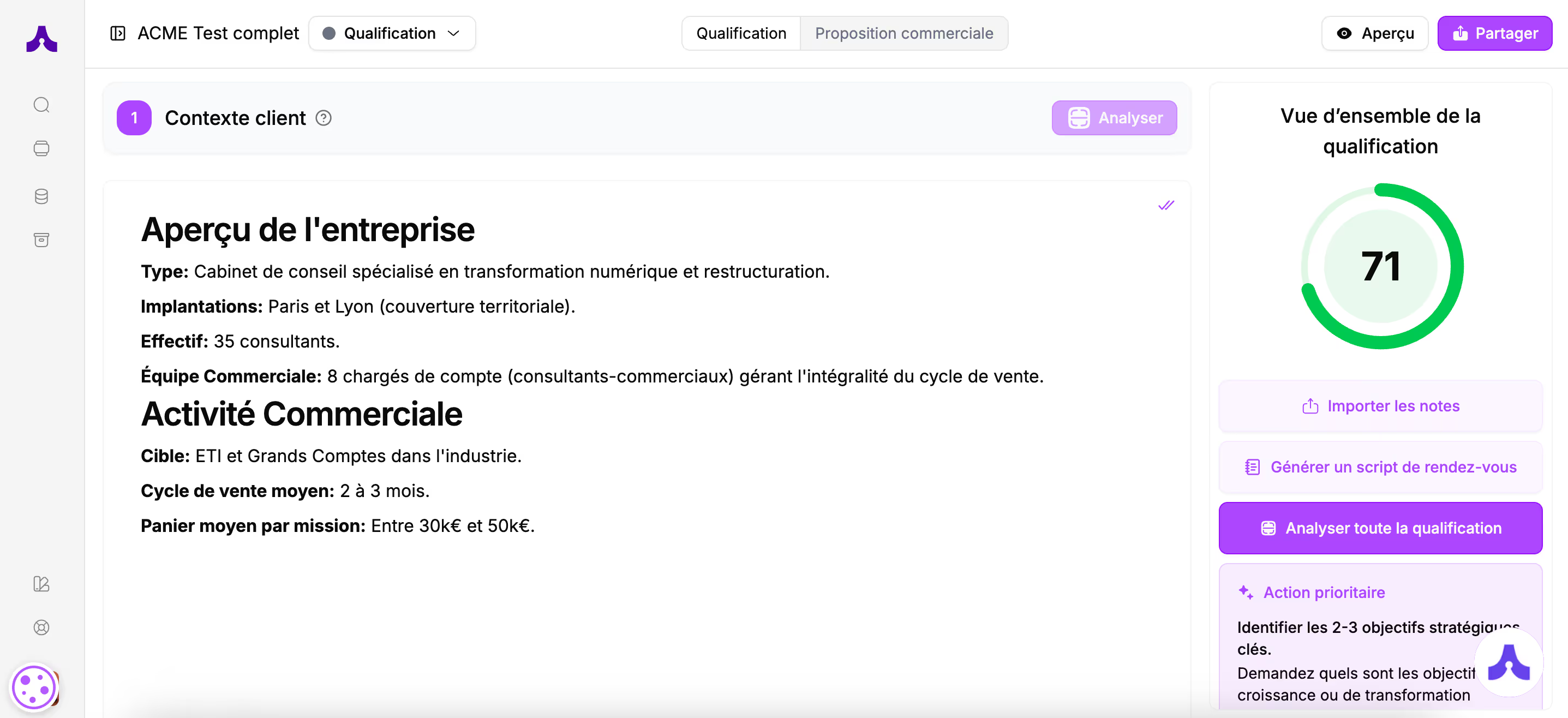
Once the analysis is done, you get a score and recommendations.
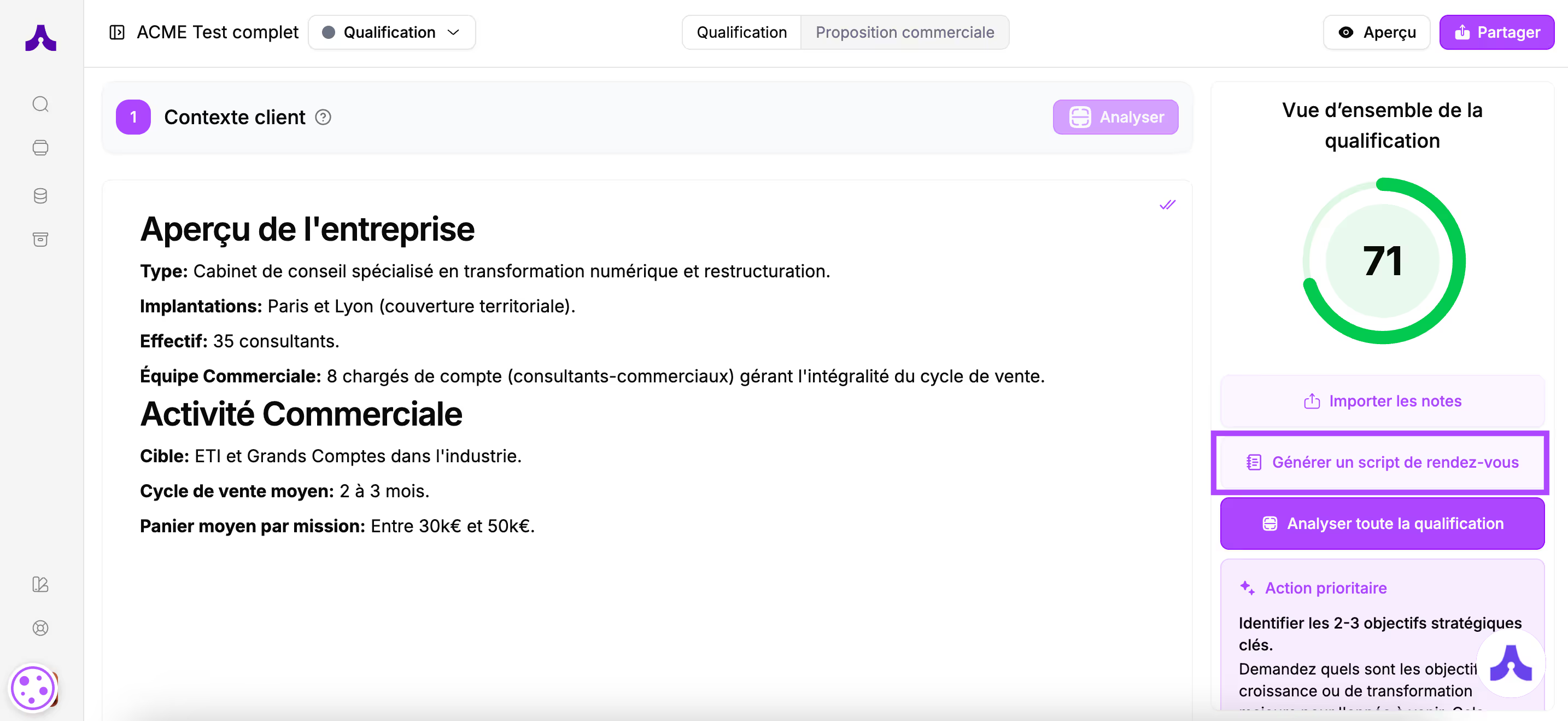
The score
The score of your qualification appears at the top right of the screen.
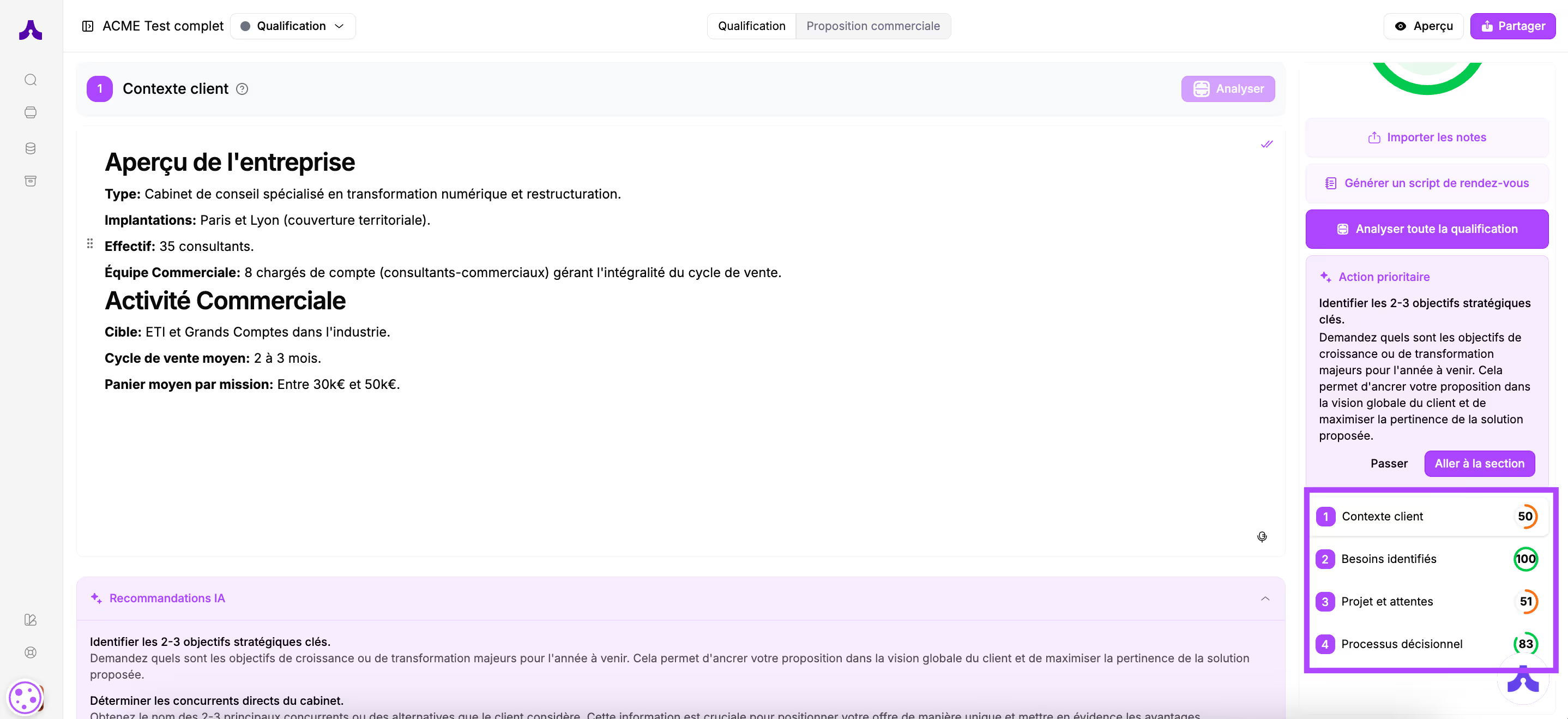
Each section is also scored to help you effectively improve your knowledge of the client and their challenges. The scores for each section are detailed below the overall score.
The recommendations
Priority actions are displayed under the overall qualification score. These are the recommendations for the sections with the lowest scores that appear first.
A "Go to section" button allows you to go directly to the section concerned by the recommendation to modify the content.
You also have the option to "Pass" (skip) the recommendation if it does not seem relevant to you. In that case, the next recommendation is displayed.
All recommendations are also displayed under each respective section.
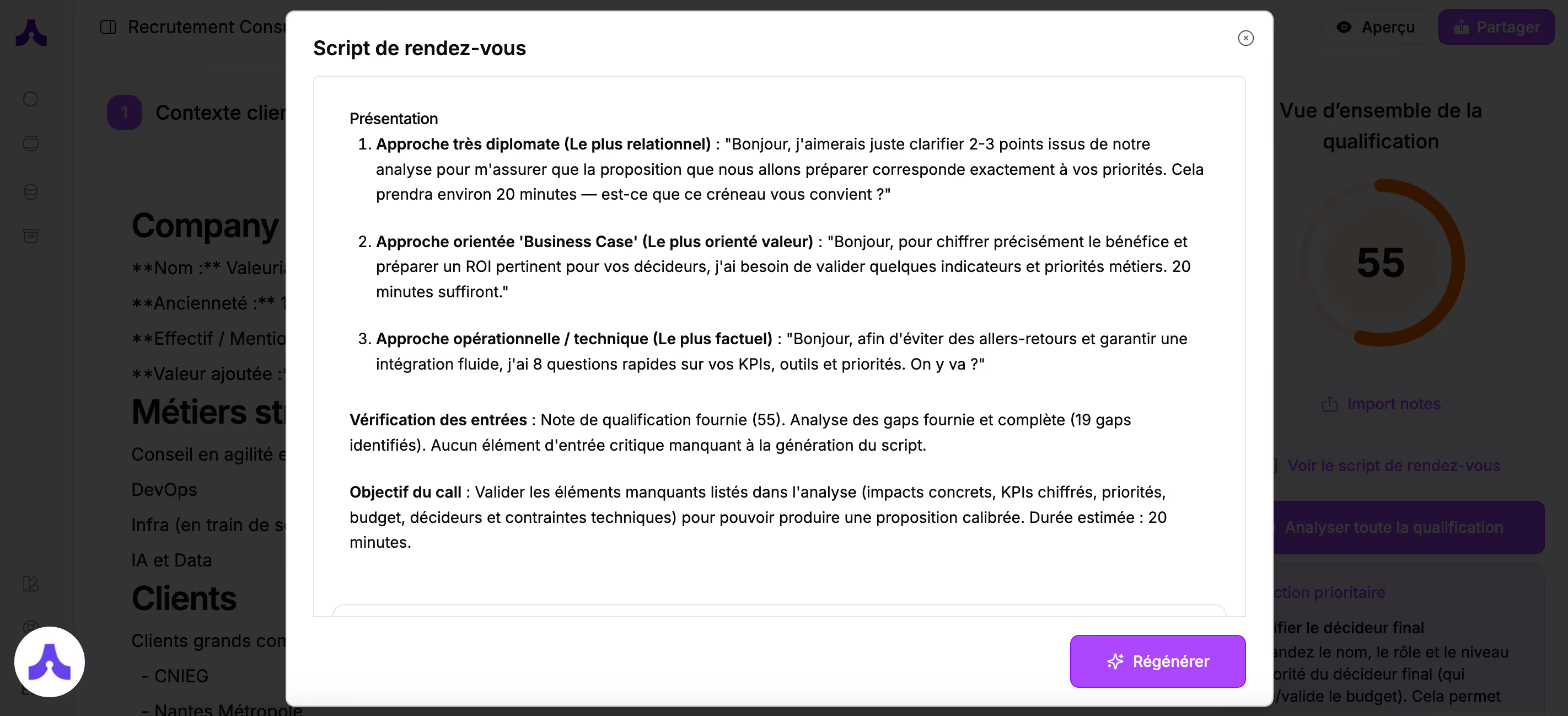
Generate a meeting script
Cuevr can also help you gather the missing information from your client.
Click the "Generate a meeting script" button, and Cuevr will create a meeting outline for you to naturally bring up the topics with your prospect and get the information you lack.
When you feel you have a good understanding of your prospect's challenges and needs, your qualification is complete.
You will now be able to move on to building the sales proposal.
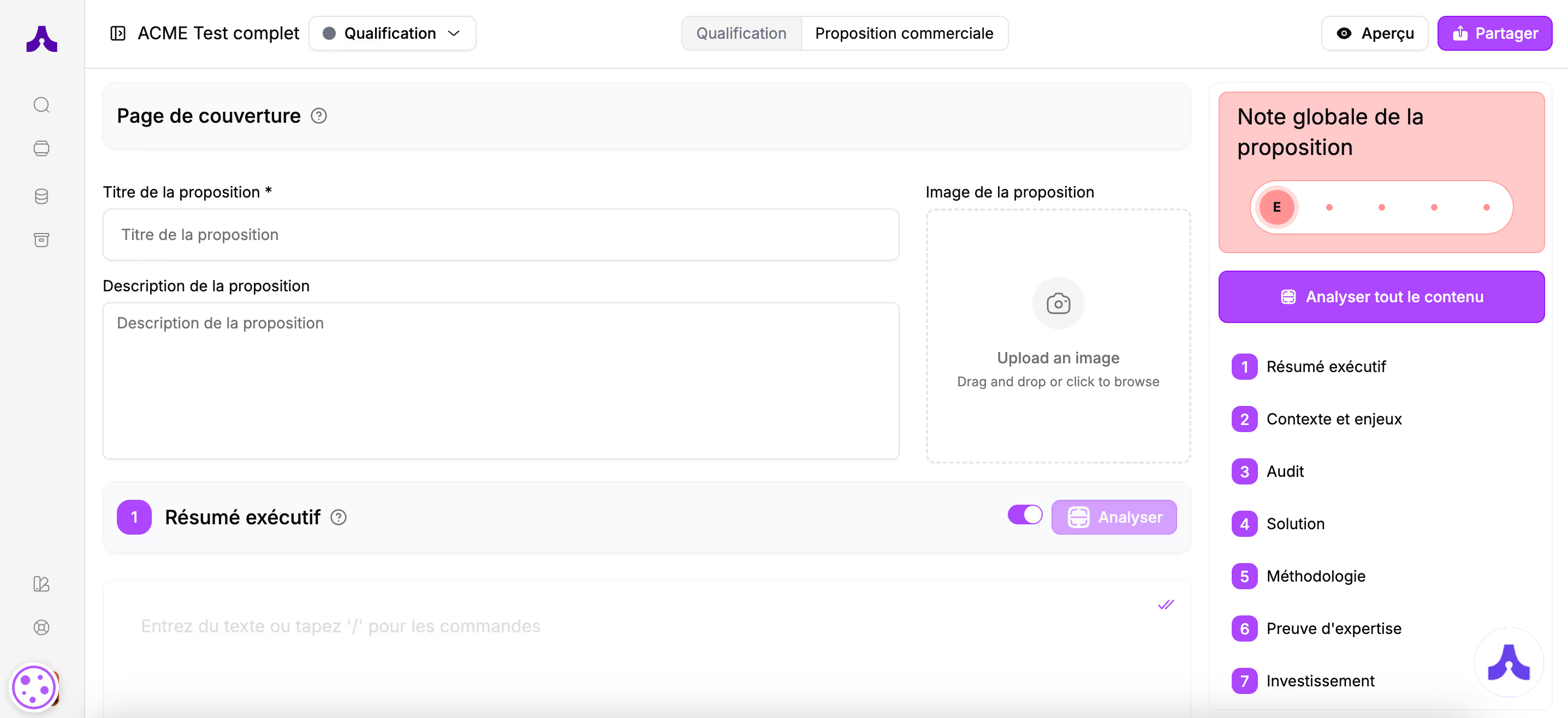
To do this, click the "Content" button at the top of the screen.