Check the proposal preview
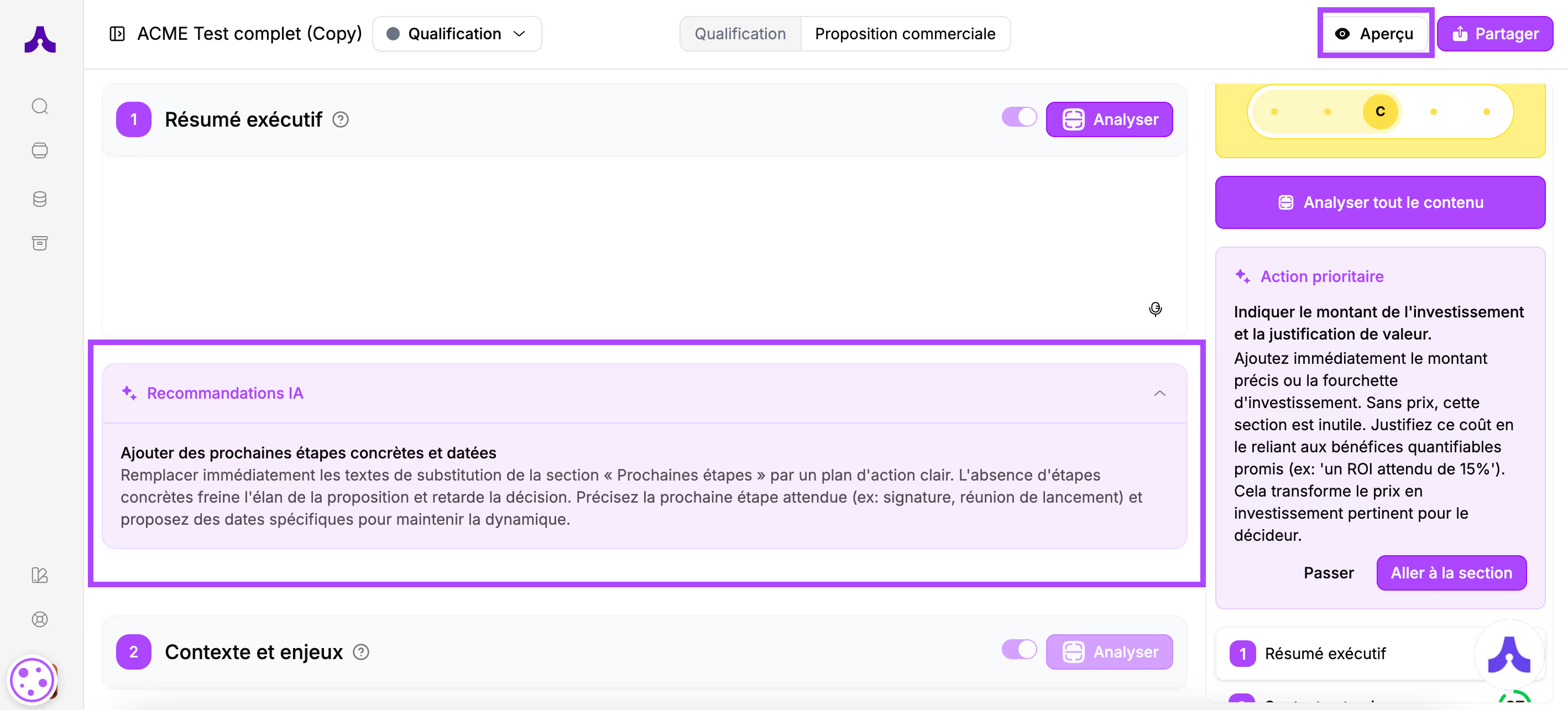
Click the "Preview" button located at the top right of the screen.
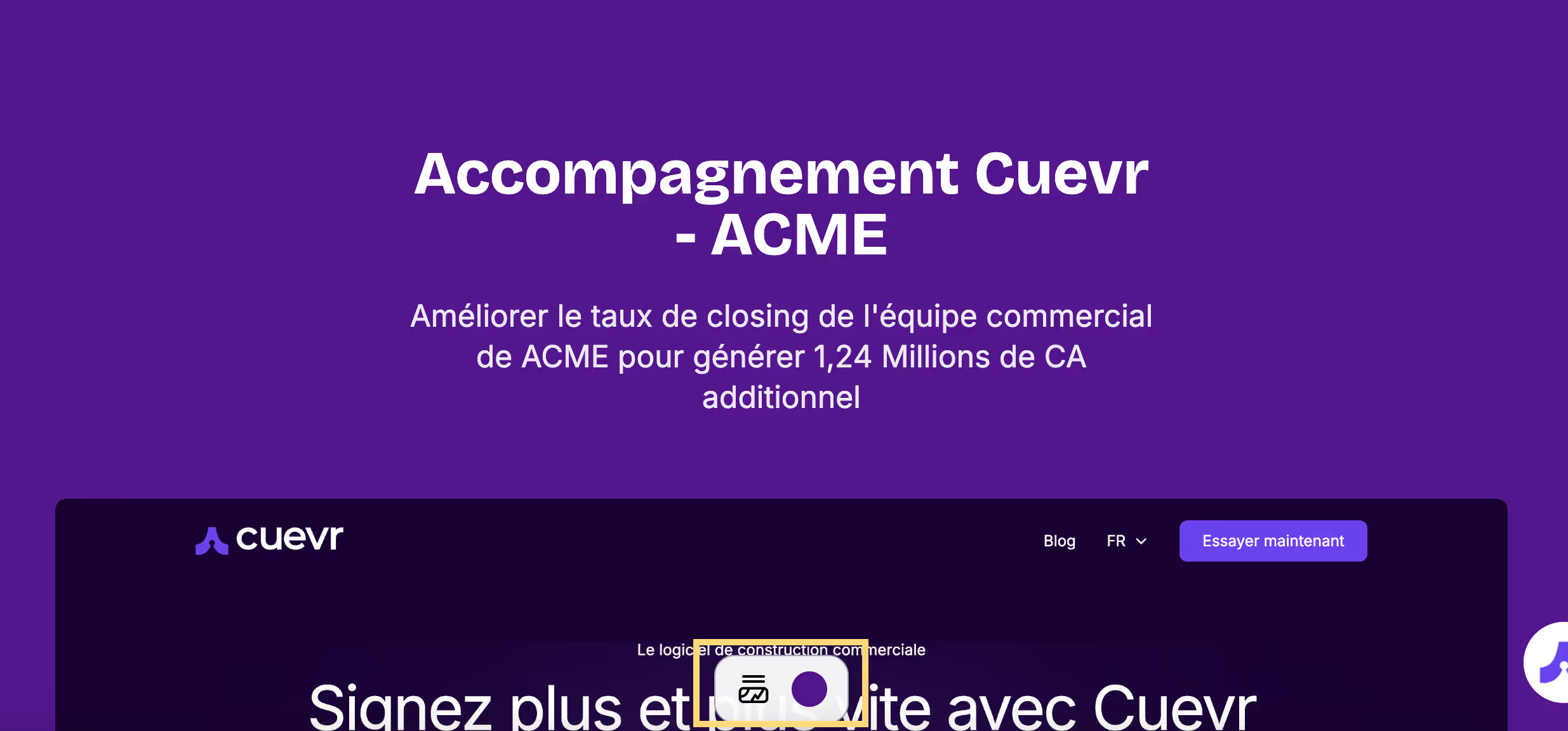
By hovering over the different blocks, buttons appear to customize the formatting.
In the proposal building space, you were offered 3 fields:
- The proposal title (mandatory)
- The proposal description
- An image
You will find the elements you filled in here. The button at the bottom of this introductory block allows you to choose the layout of the elements.
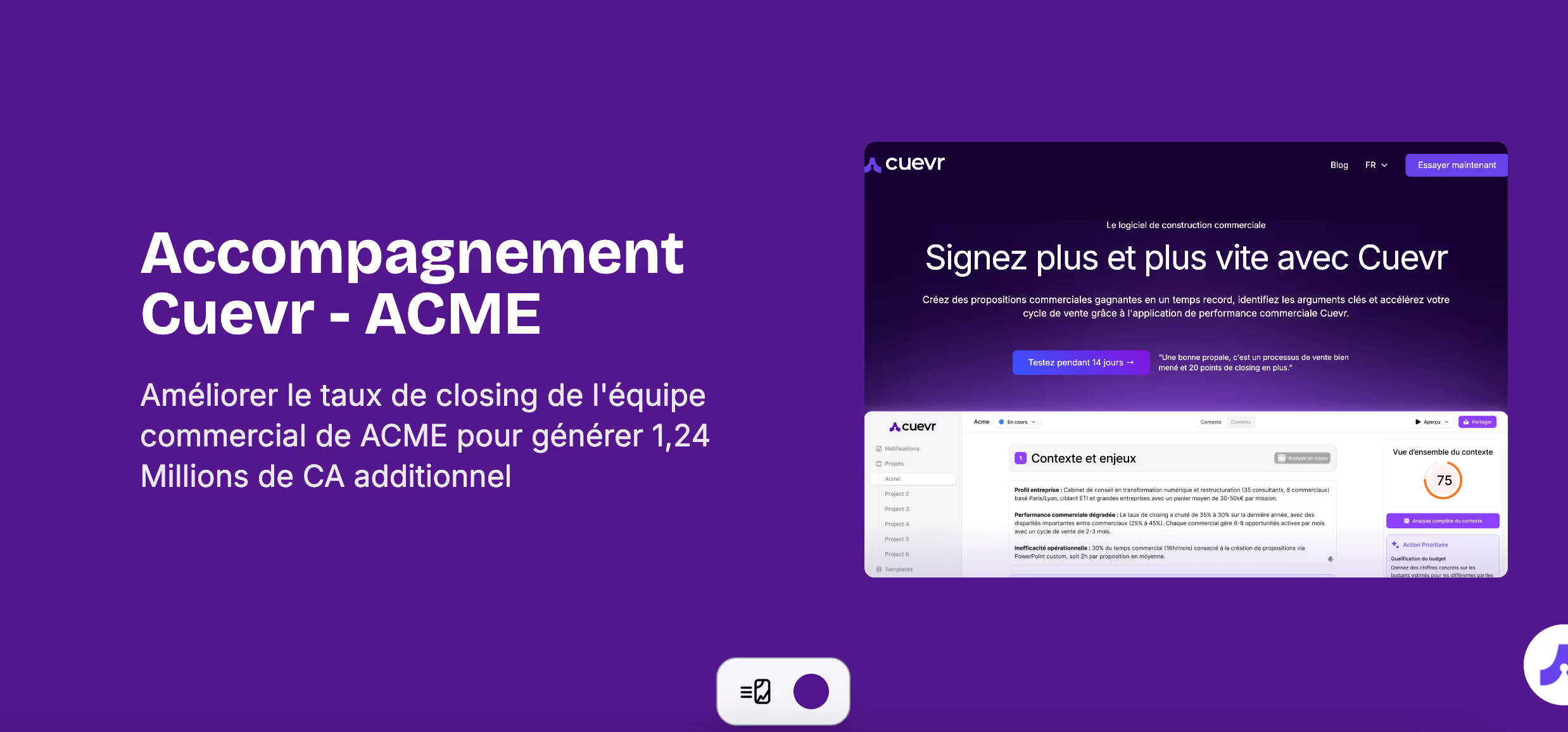
3 layouts are available:
- In 2 columns, text on the left and image on the right
- In rows, the title first, then the description and the image. All centered on your screen.
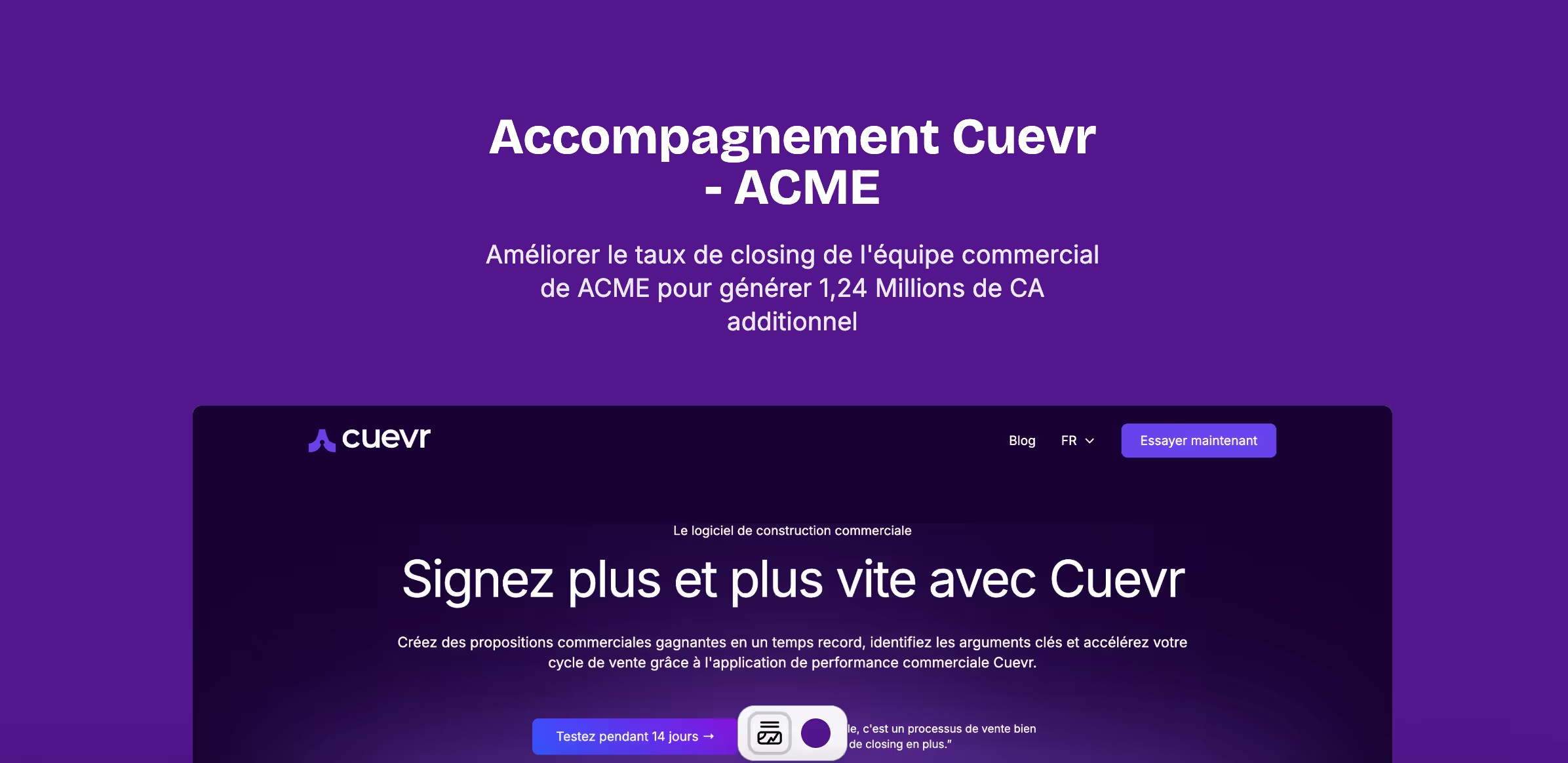
- The texts centered on the block, with the image in the background
The button allows you to change the background color of your proposal.
2. Publish the proposal
Once the formatting is complete, you can publish your proposal.
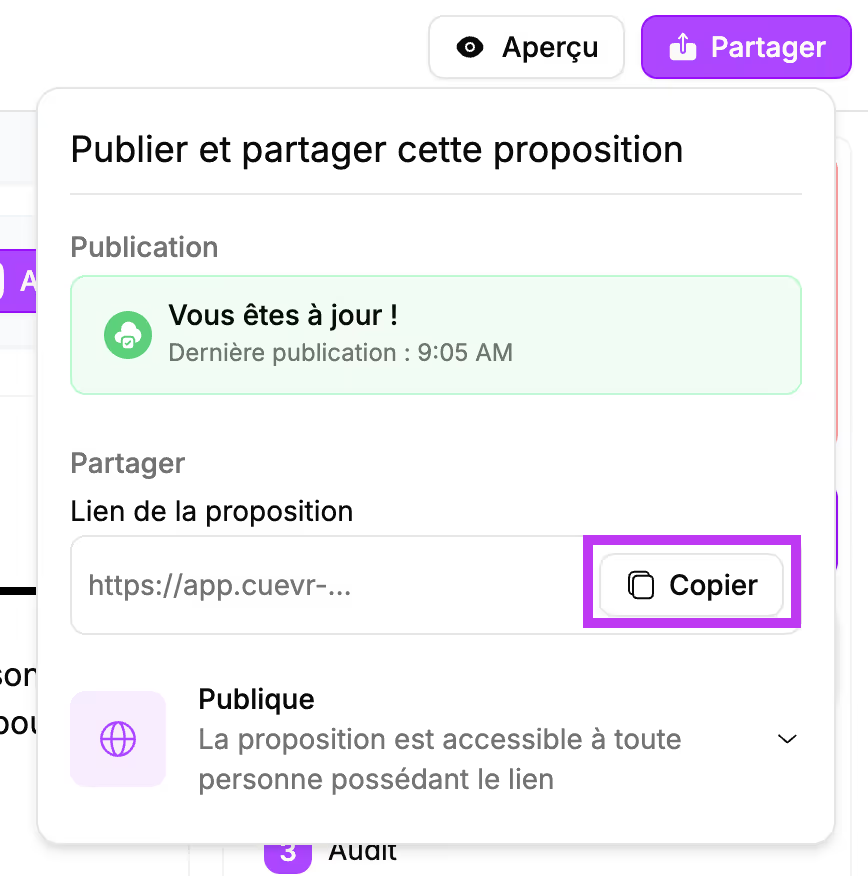
Click the "Share" button located at the top right of the screen.
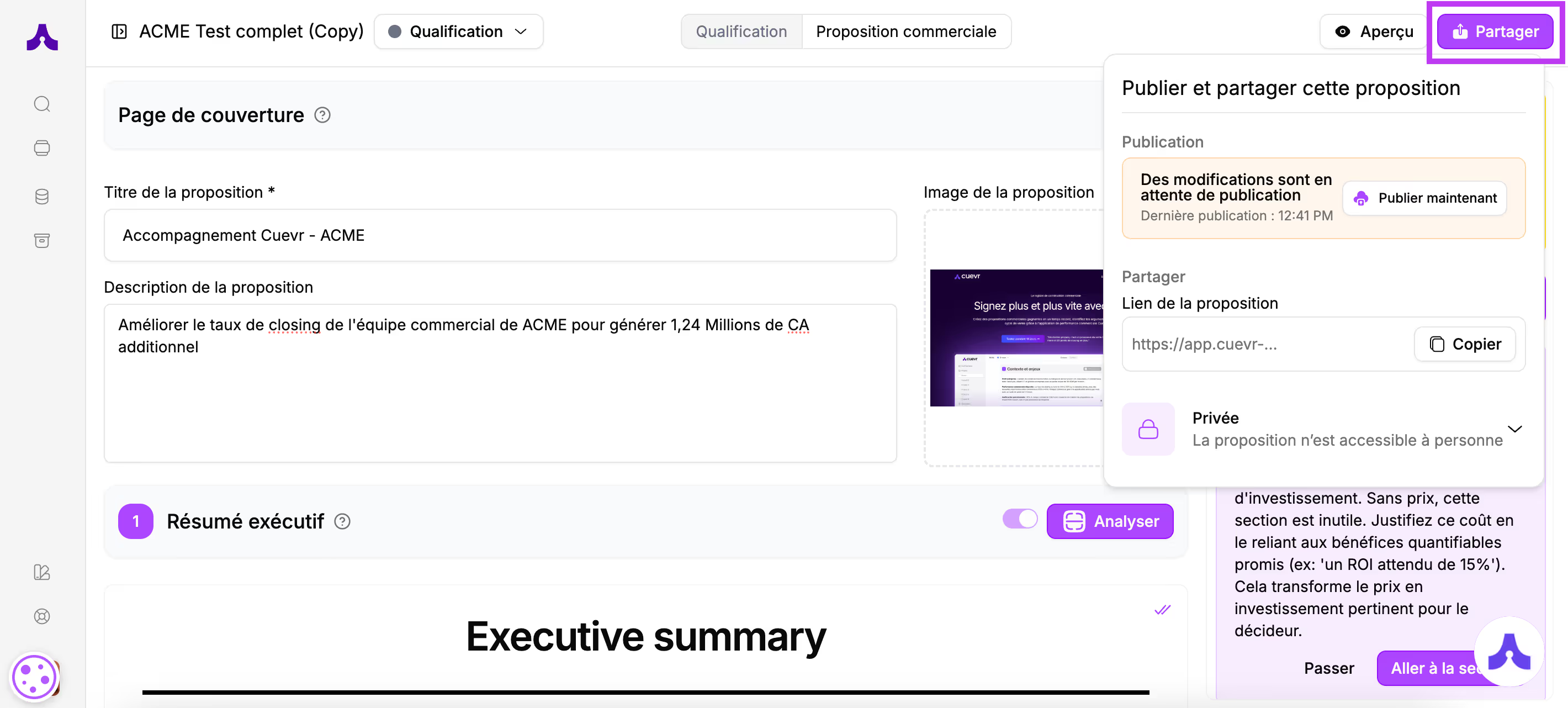
A menu appears in the top right corner.
The orange box indicates that changes are pending publication.
Click the "Publish now" button.
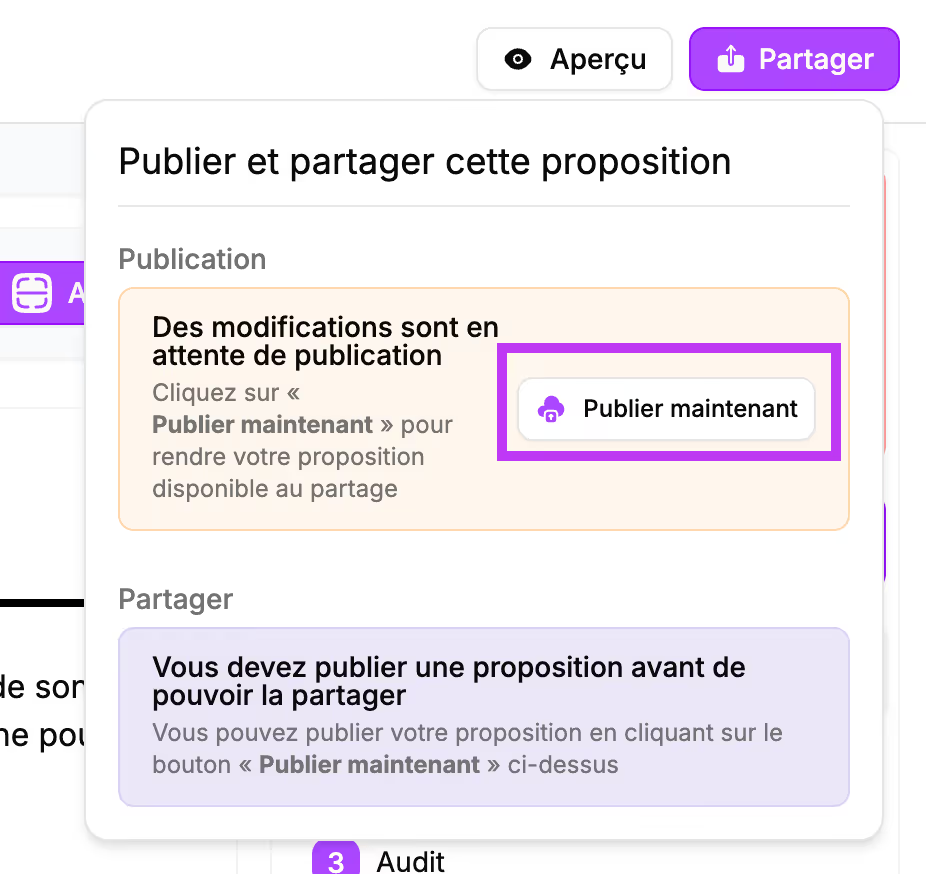
The box is now green to show that you are up to date.
3. Choose the sharing mode
In the sharing menu, under the publication management section, you will find a drop-down menu allowing you to choose the sharing mode for your prospect.
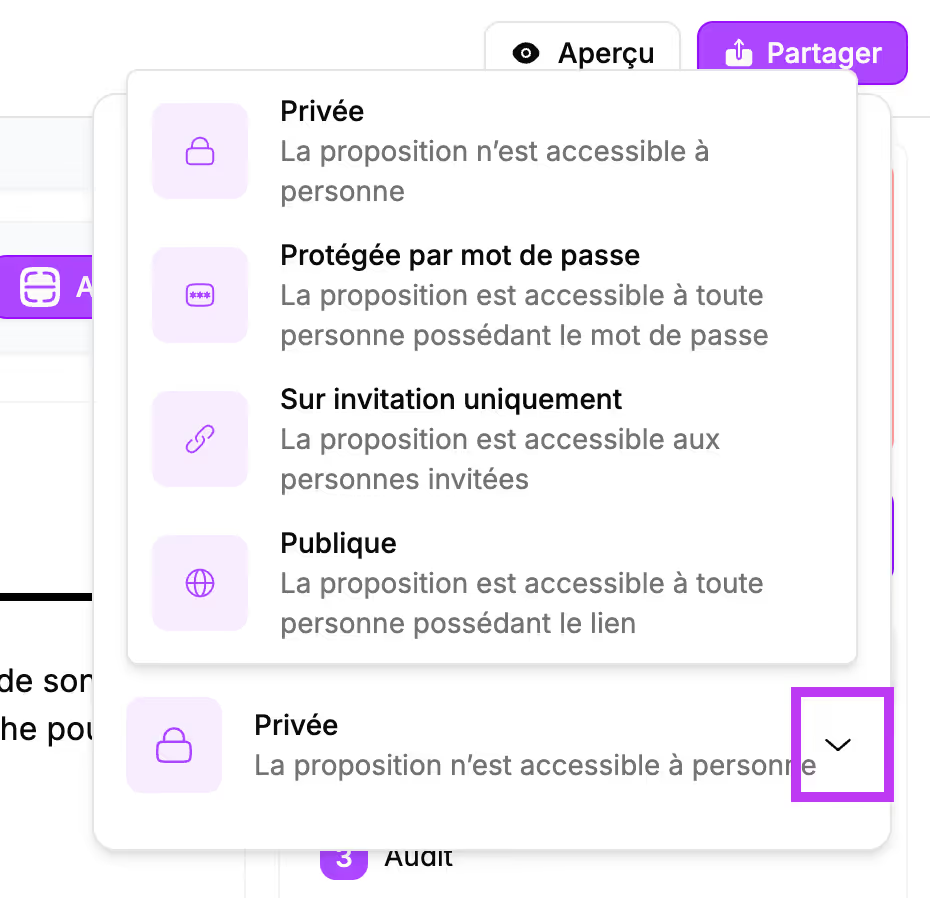
4 sharing modes are possible:
- Private: Only you can view the proposal. This is the default mode for your proposal.
- Password protected: A password will be required to access the sales proposal.
- Invitation only: You invite the people who can access the proposal using their email addresses.
- Public: Anyone with the link to the sales proposal can access it.
Select "Private" mode from the drop-down menu.
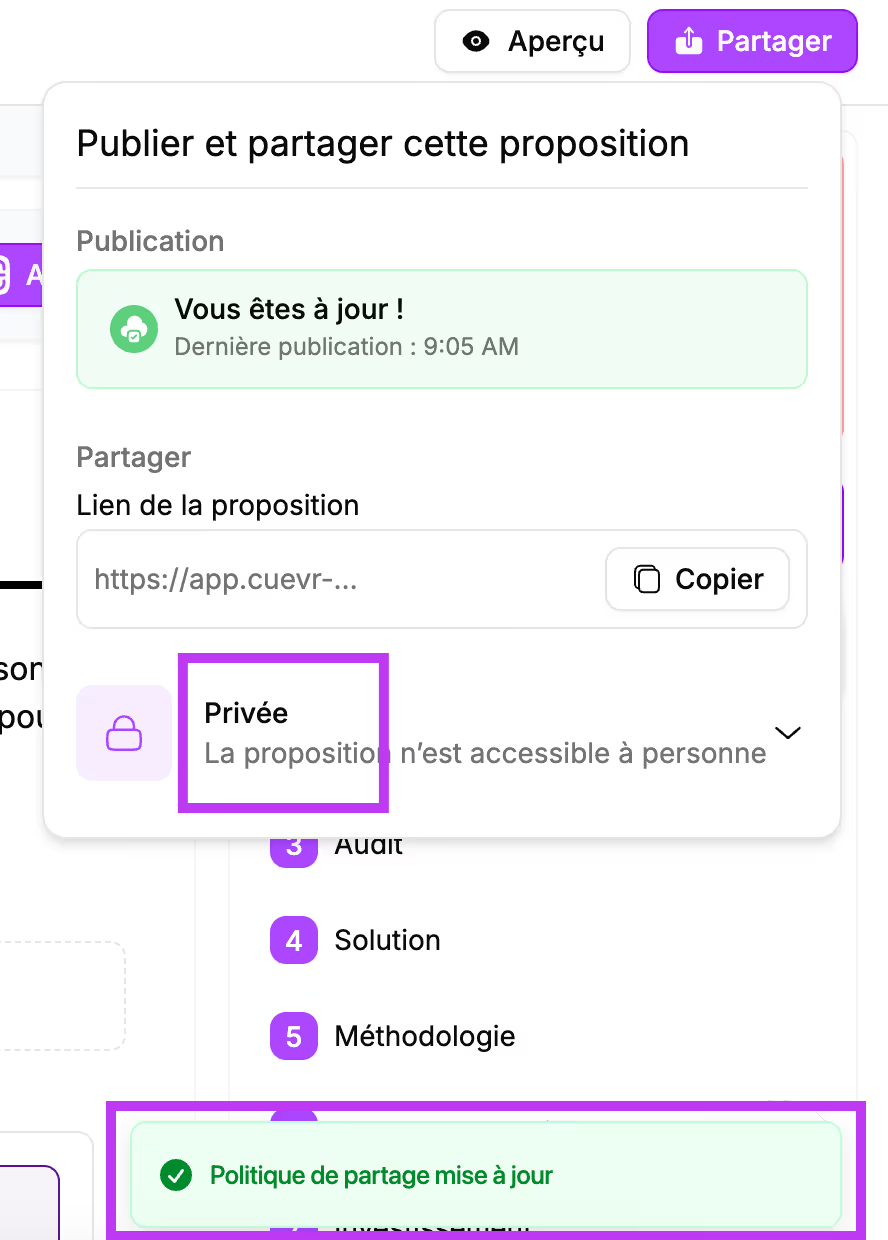
A message appears at the bottom right of the screen to inform you that the sharing policy has been updated.
Your proposal is only accessible to you.
Select "Password protected" mode from the drop-down menu.
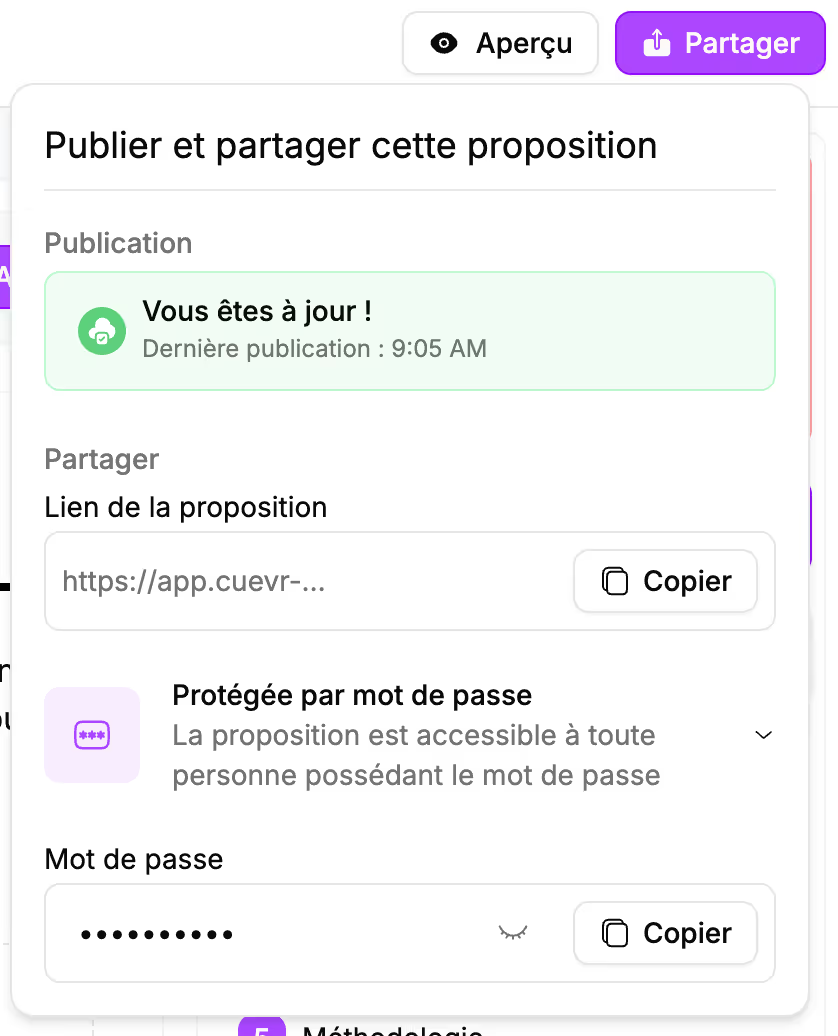
A message appears at the bottom right of the screen to inform you that the sharing policy has been updated.
A password appears. Click the "eye" icon next to the password to display it or the "copy" button to copy the password.
You can send your prospect an email with the link to the sales proposal and the password to access it.
When the prospect clicks the link, they will see this on their screen:
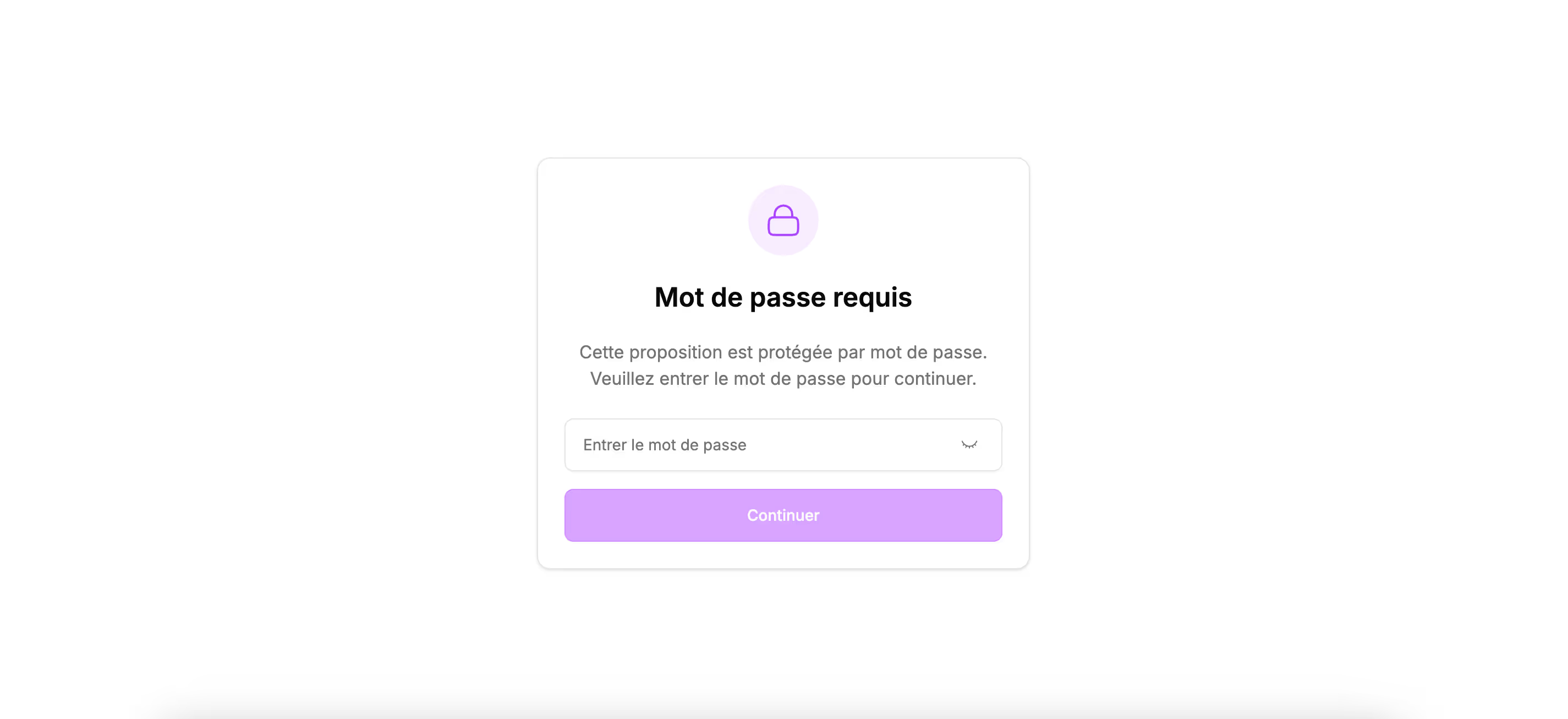
Select "Invitation only" mode from the drop-down menu.
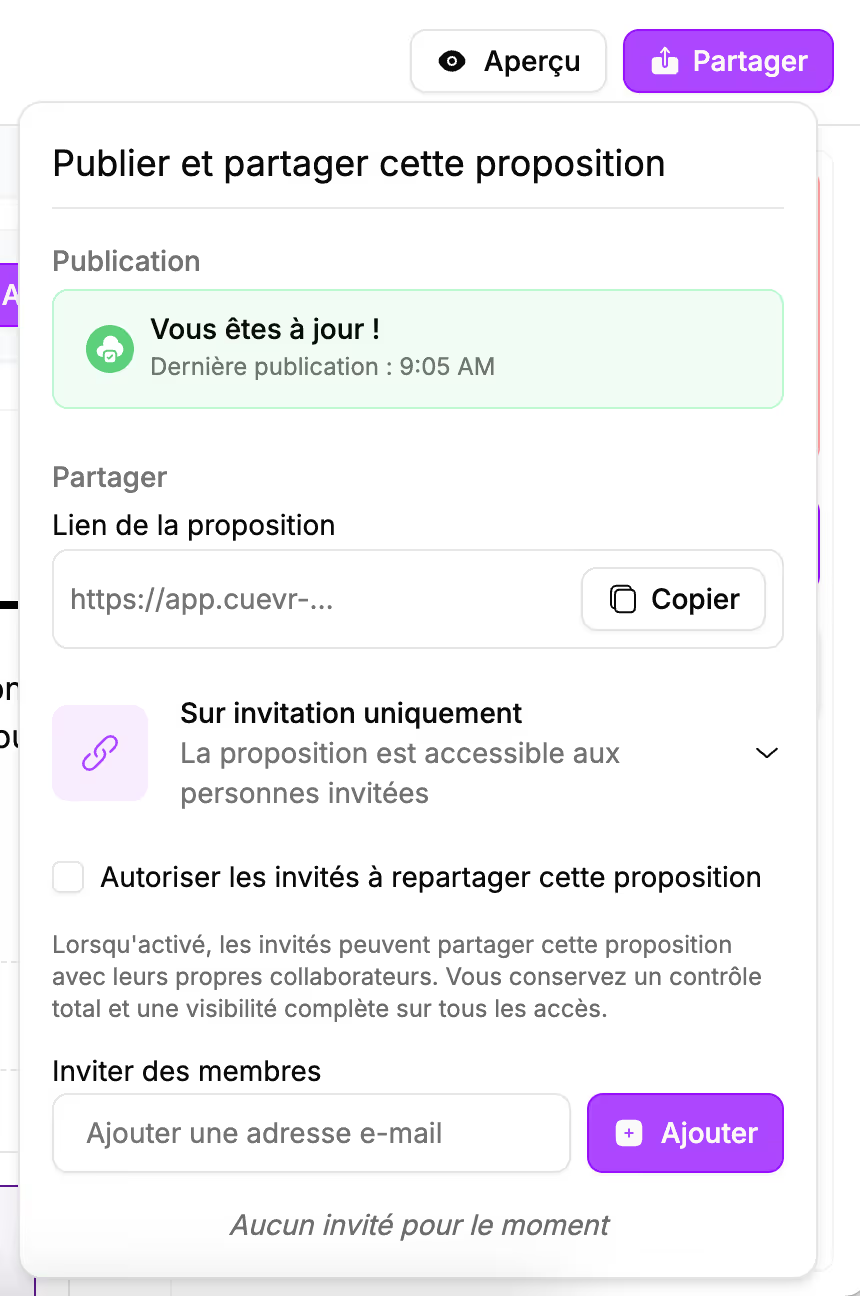
A message appears at the bottom right of the screen to inform you that the sharing policy has been updated.
At the bottom of the window, a box allows you to enter the email addresses of the people you want to share the sales proposal with.
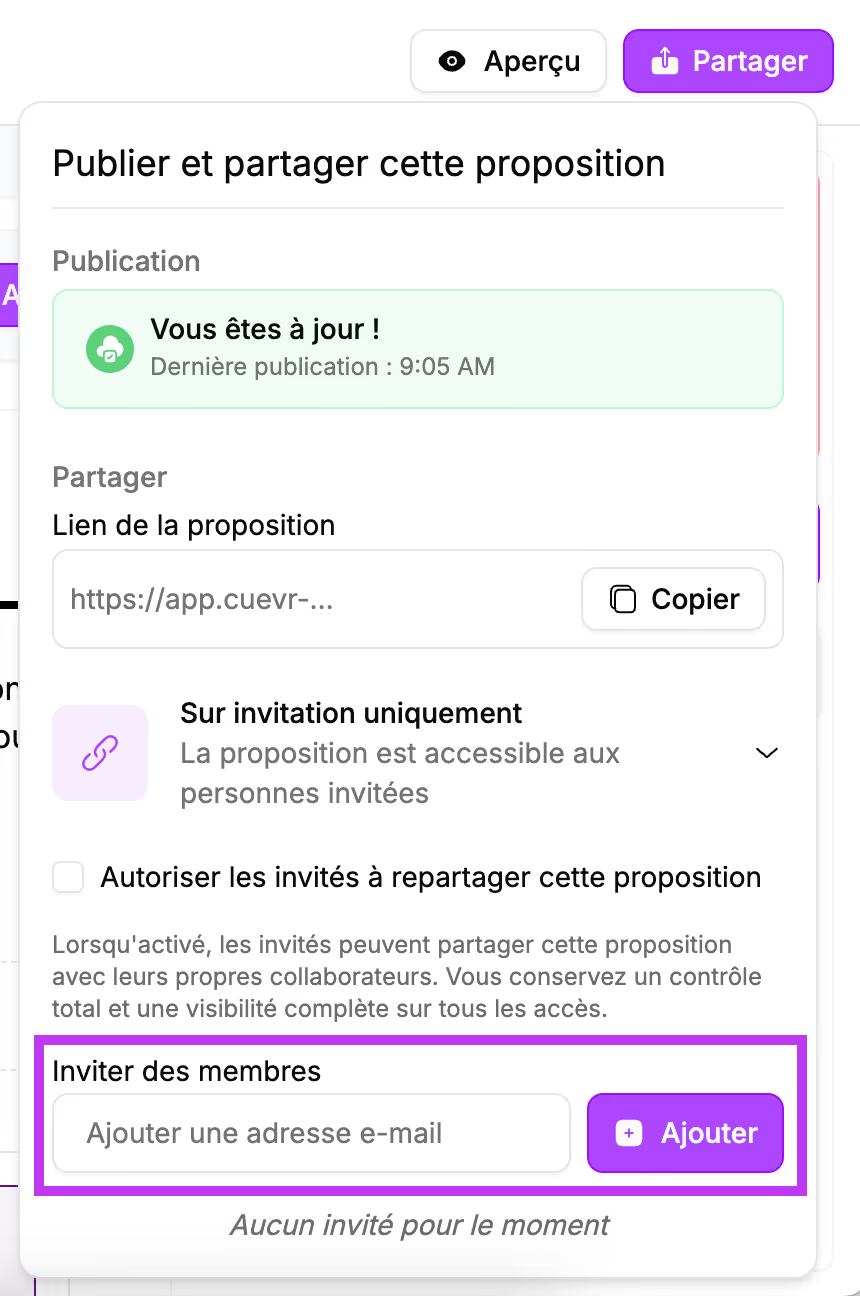
Enter the email address and click the "Add" button.
You can enter multiple email addresses by repeating the operation.
You have the option to allow your prospect to reshare the proposal.
Check the "Allow guests to reshare this proposal" box.
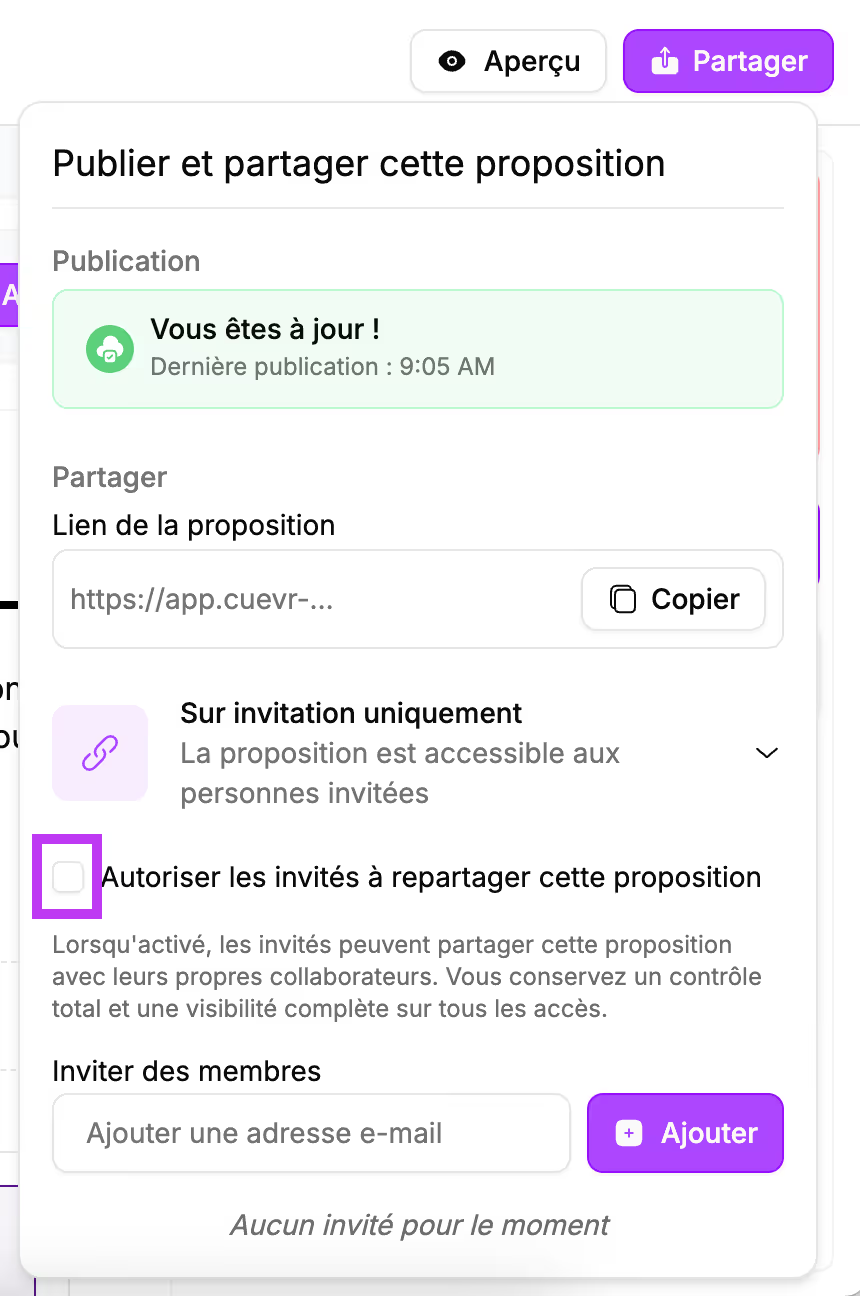
If your prospect shares the proposal, the email addresses will appear under the addresses of the people you invited. You will also know who shared the proposal and when.
Next to the email addresses, a "trash" icon allows you to remove access.
Public
Select "Public" mode from the drop-down menu.
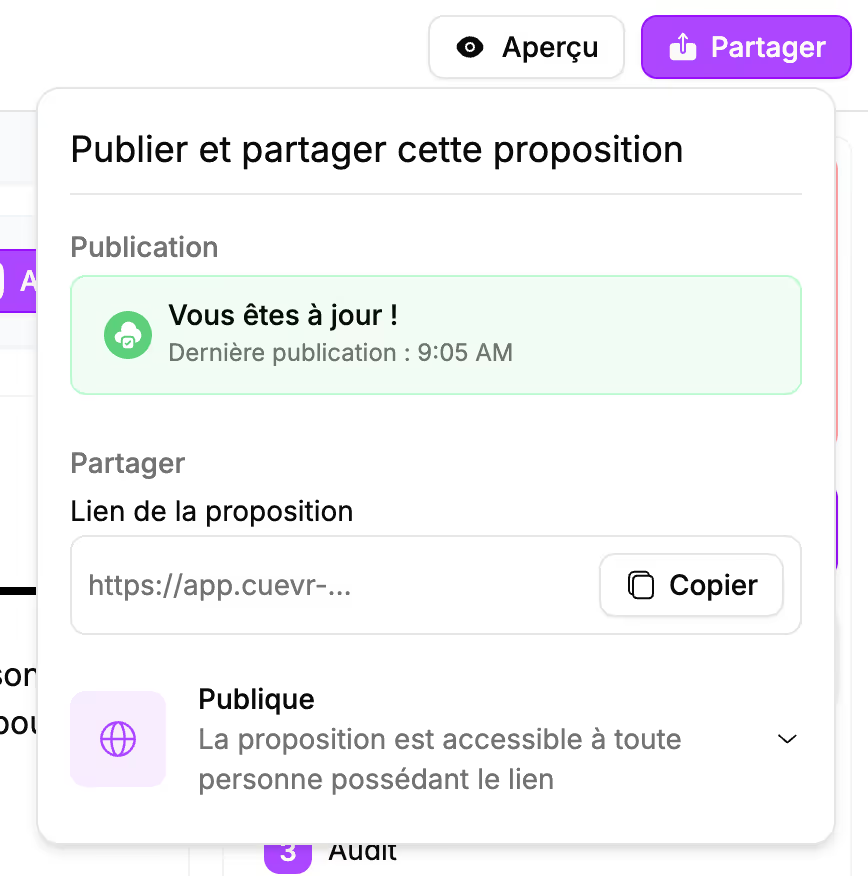
A message appears at the bottom right of the screen to inform you that the sharing policy has been updated.
The proposal can be viewed by anyone who has the link. In the window, the link to the proposal is displayed.
You can click the "Copy" button to copy the link and send it to your prospect.