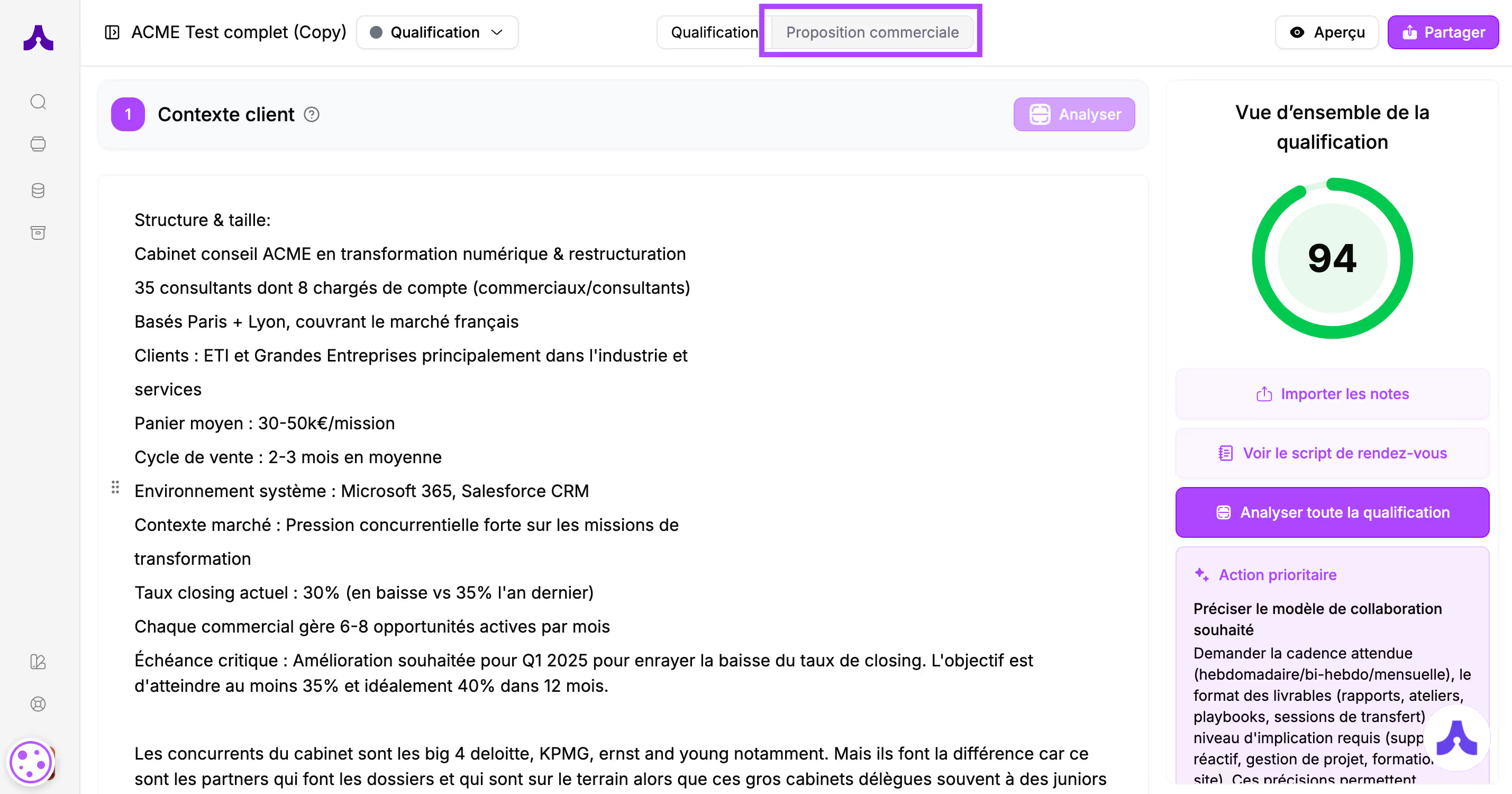
This is the space where you will build the sales proposal for your prospect.
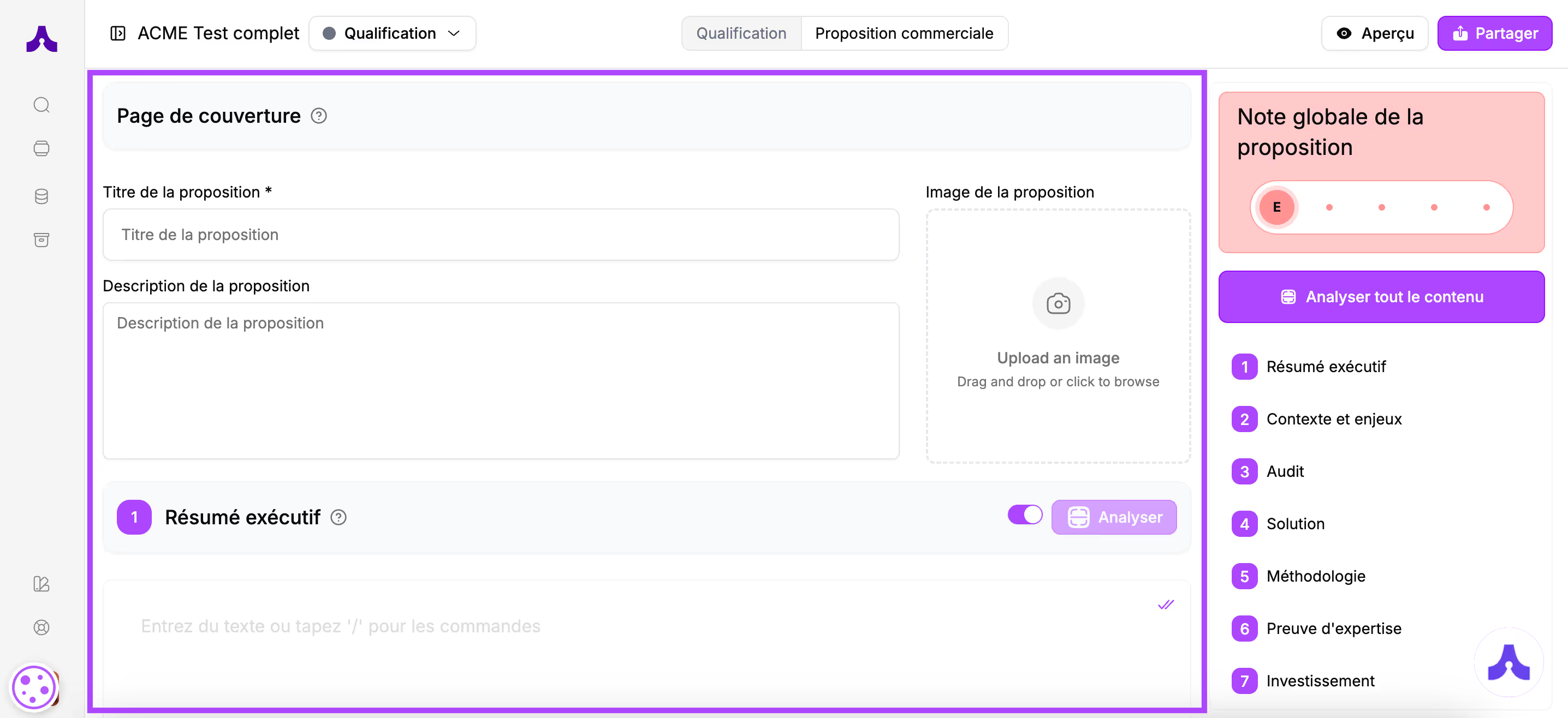
The screen is composed of 2 parts
- The left part (about 3/4 of the screen): this is where you will put your content
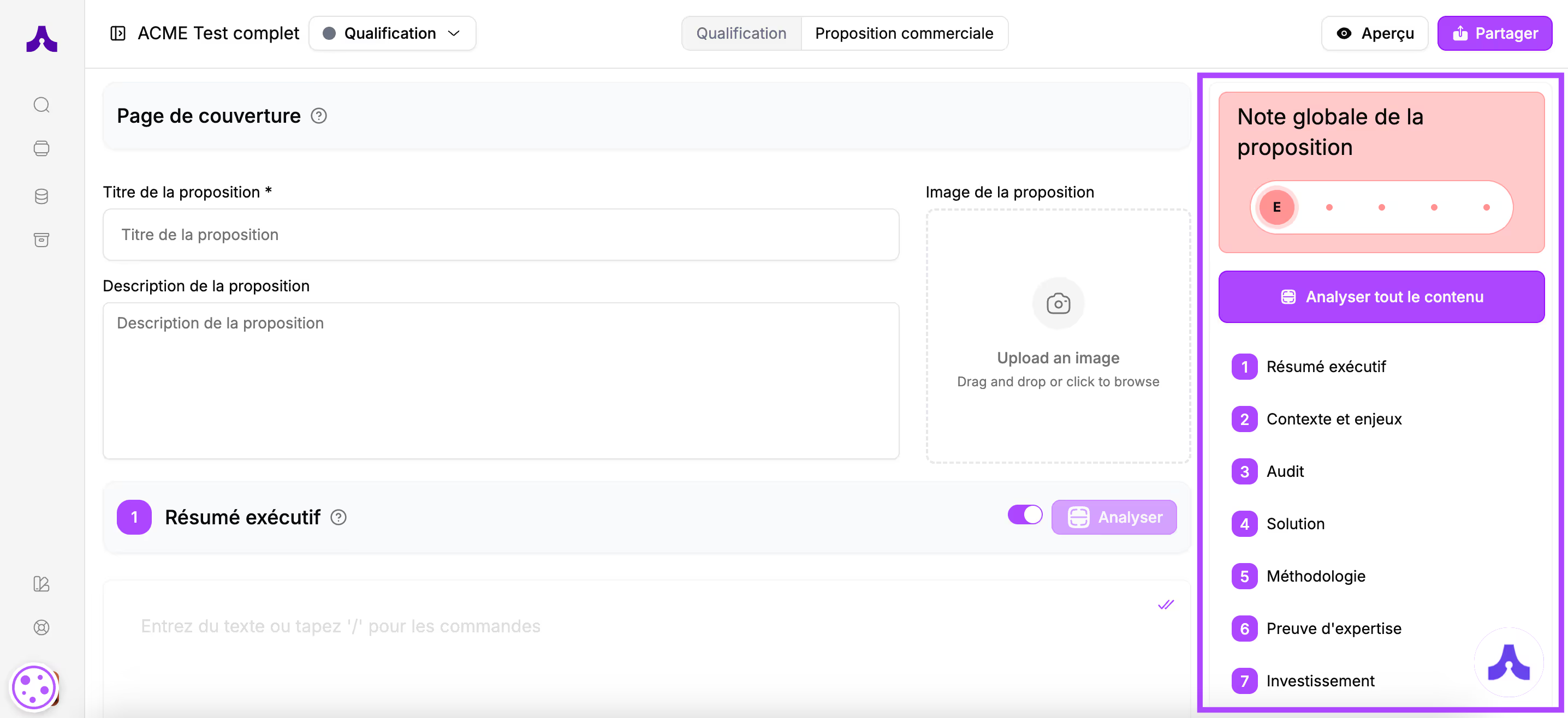
- The right part is dedicated to analyzing your proposal
The cover page
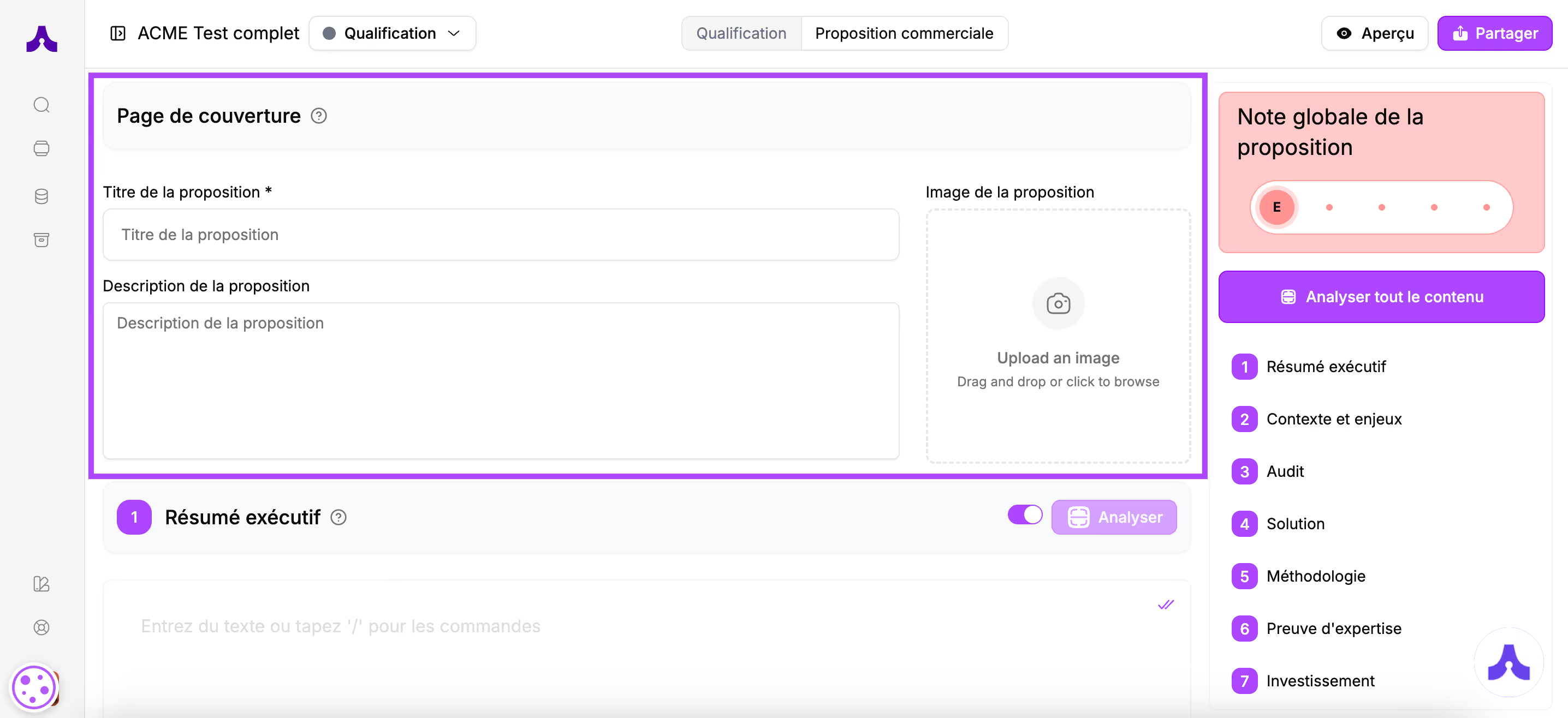
This is the information that will appear in the header of your sales proposal.
The proposal title is mandatory.
You also have the option to add a description and an image.
If you add an image, favor one related to your client to show that your proposal is centered on them and their needs (for example, it could be a screenshot of the client's website header).
The proposal content
The sections
Proposals in Cuevr are divided into 10 sections
- Executive summary
- Context and challenges
- Audit
- Solution
- Methodology
- Proof of expertise
- Investment
- ROI
- Planning
- About
Tooltips are placed next to each section title to guide you.
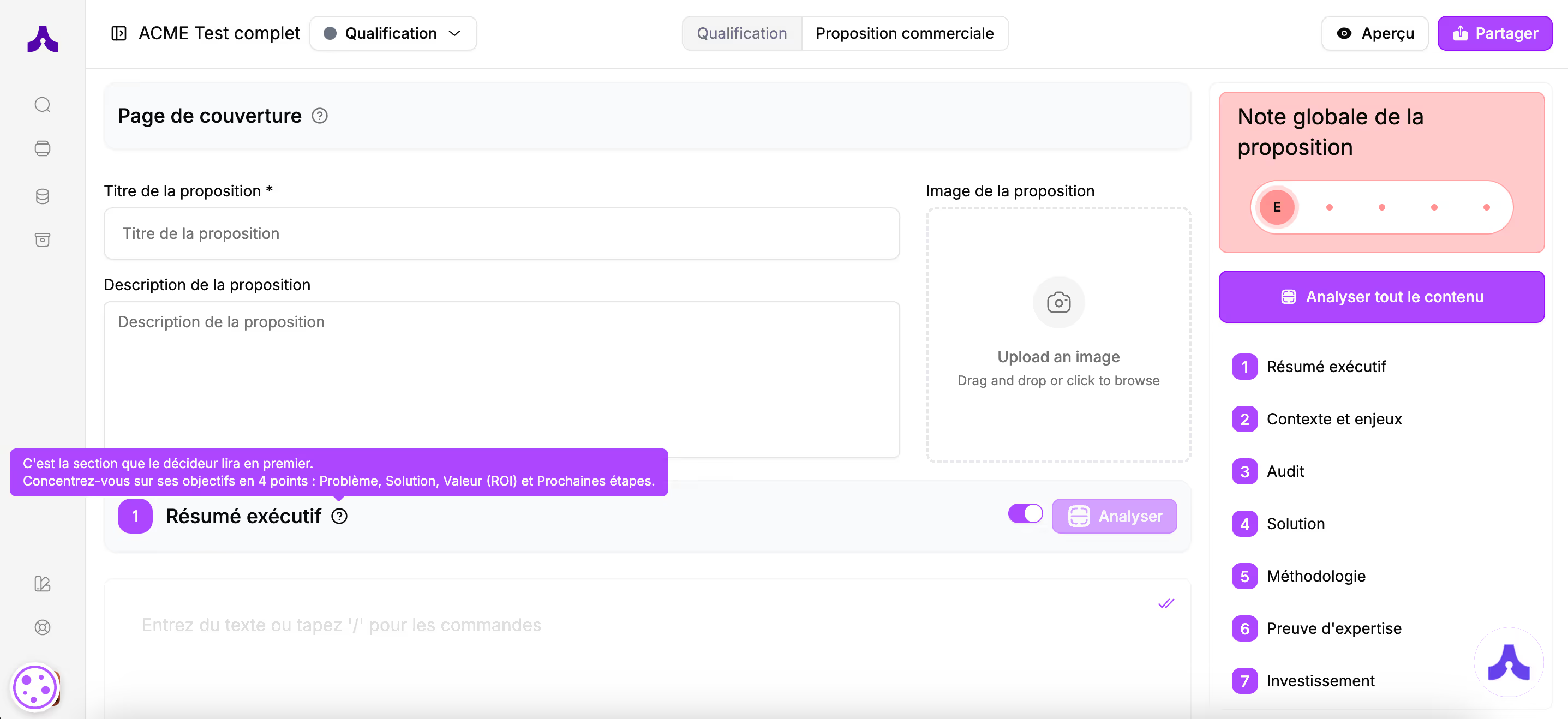
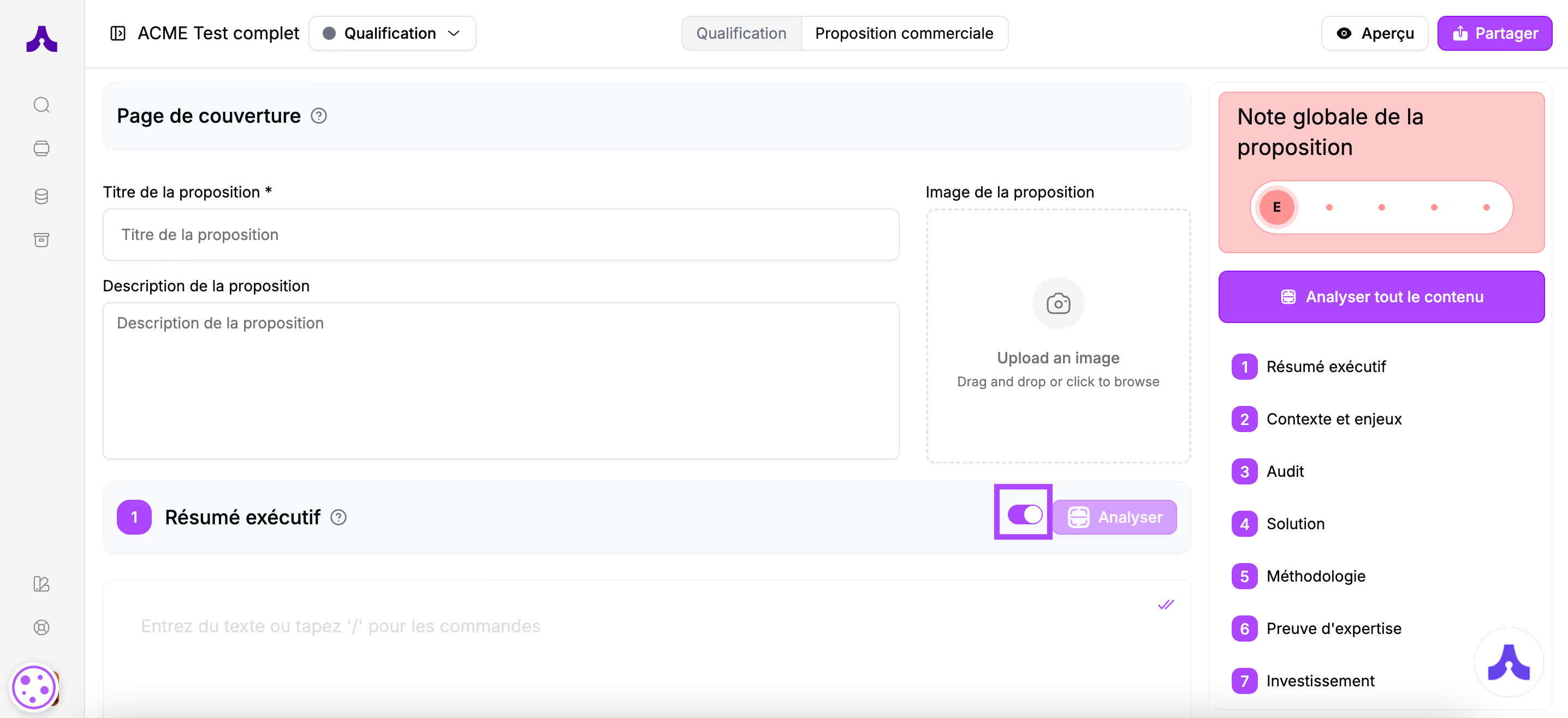
Depending on your business, not all sections will be relevant.That's why the Executive summary, Audit, Methodology, and ROI sections are optional.To remove these categories, just click the toggle button.
How to fill in the sections
To fill the sections with your proposal content, you have several options:
- Generate with Cuevr AI
- Write your text directly
- Use the pre-built blocks
- Use templates
Generate with Cuevr AI
You can create your commercial proposal in just a few clicks. The AI uses everything it has learned about you and your prospect to draft each section of your document.
⚡ The time saving: No more starting from a blank page. The AI structures and writes for you, all you have left to do is review.
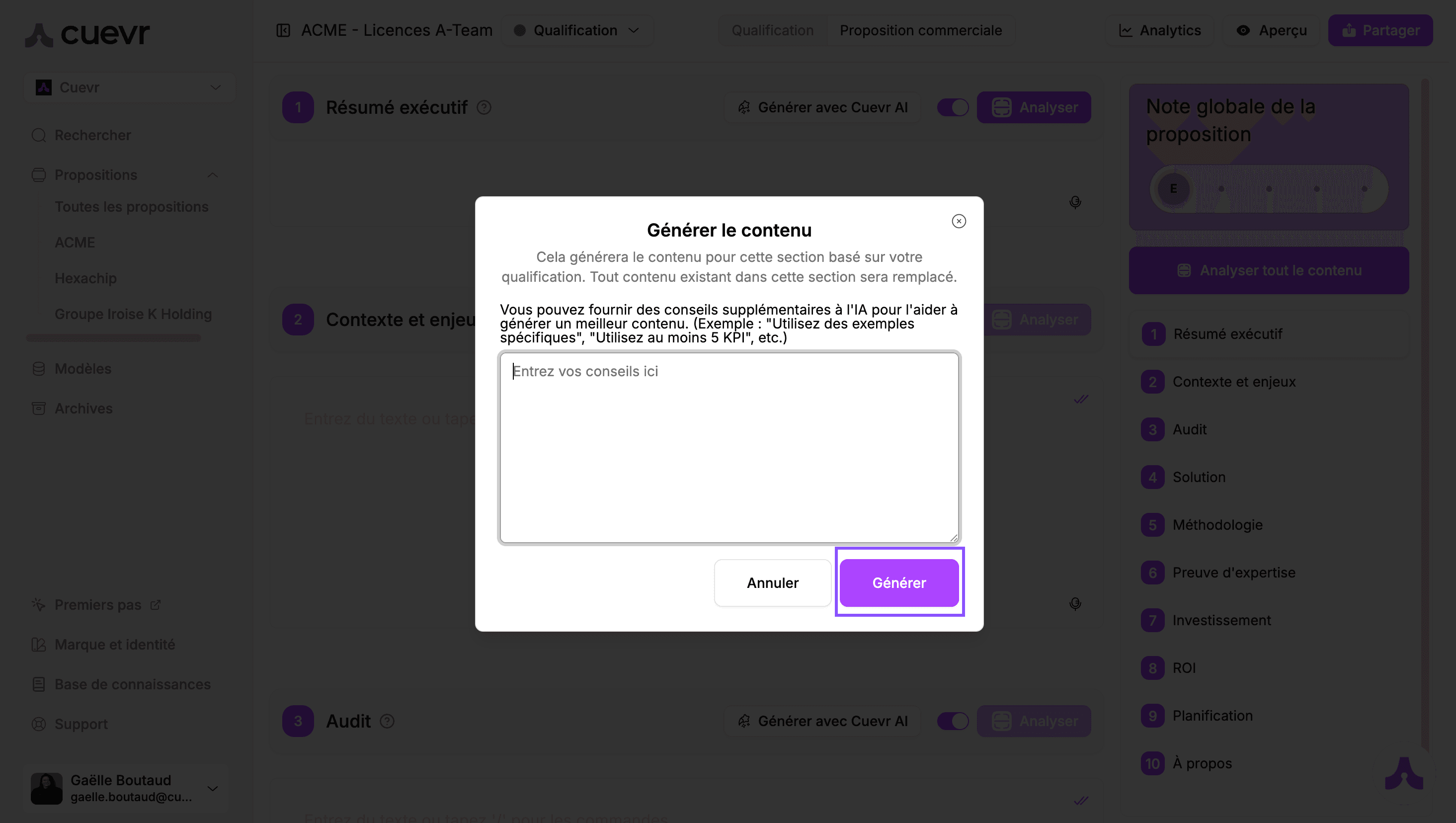
Step A: Launch the generation Identify the different sections. For each of them, click on the "Generate with Cuevr AI" button.
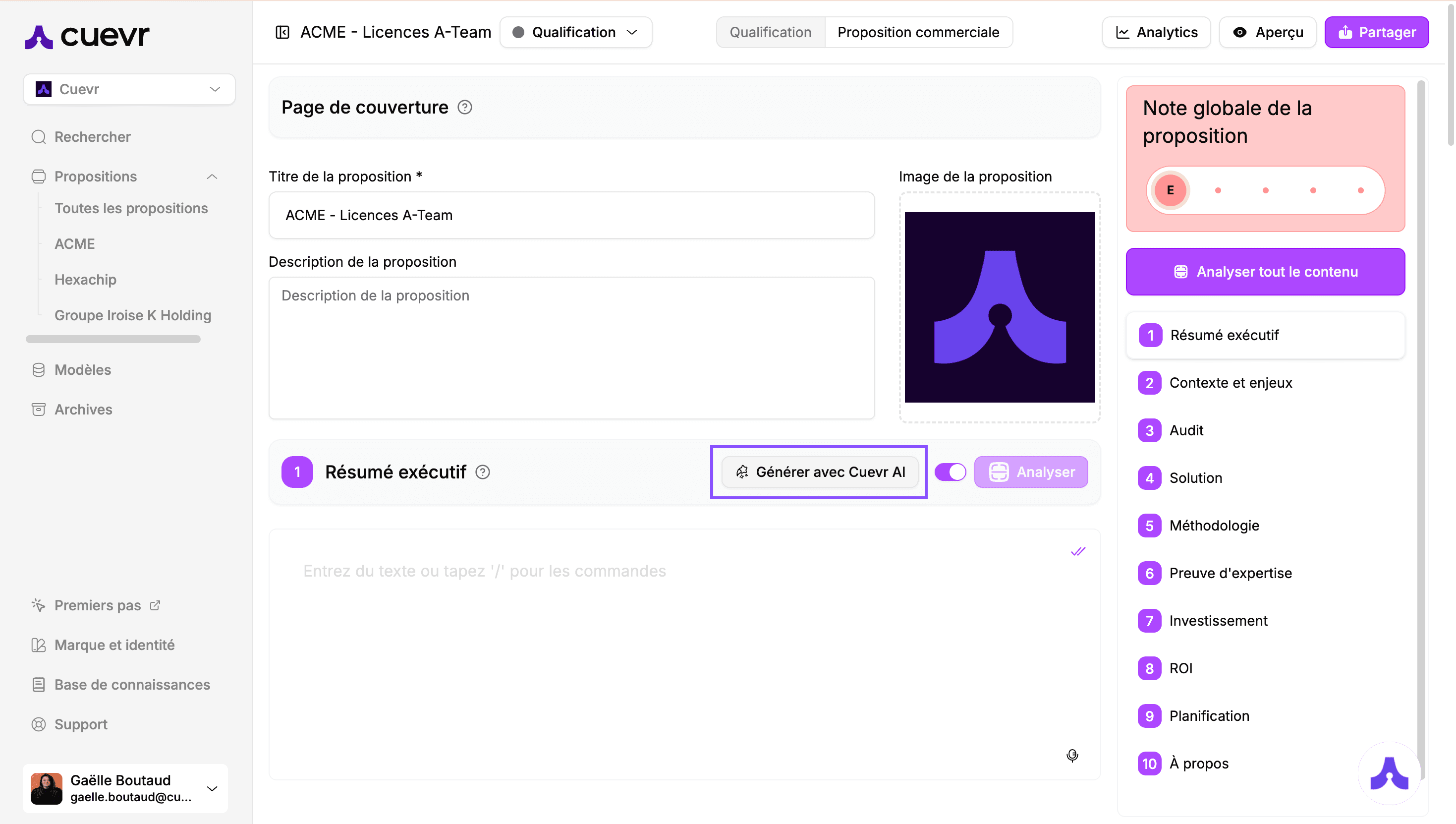
Step B: Customize (Optional)A window then opens. It allows you, if you wish, to add specific instructions for this particular section:
- Example: "Emphasize our speed of execution"
- Note: This step is not mandatory. If you have no specific instructions, click directly on "Generate".
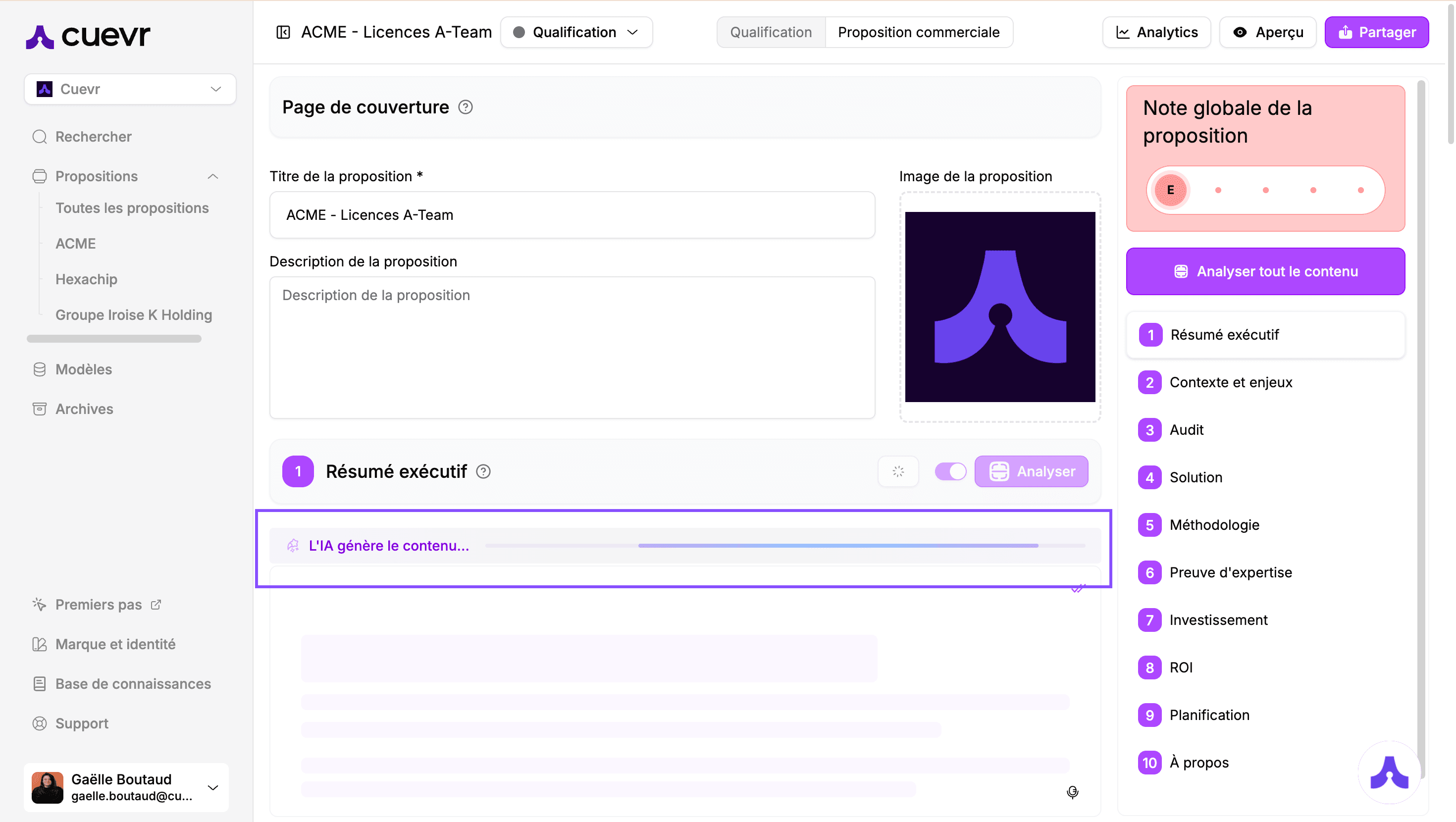
A progress bar appears to indicate that Cuevr AI is building your content.
Step C: Finalize and illustrateOnce the text has been generated, two elements may catch your attention:
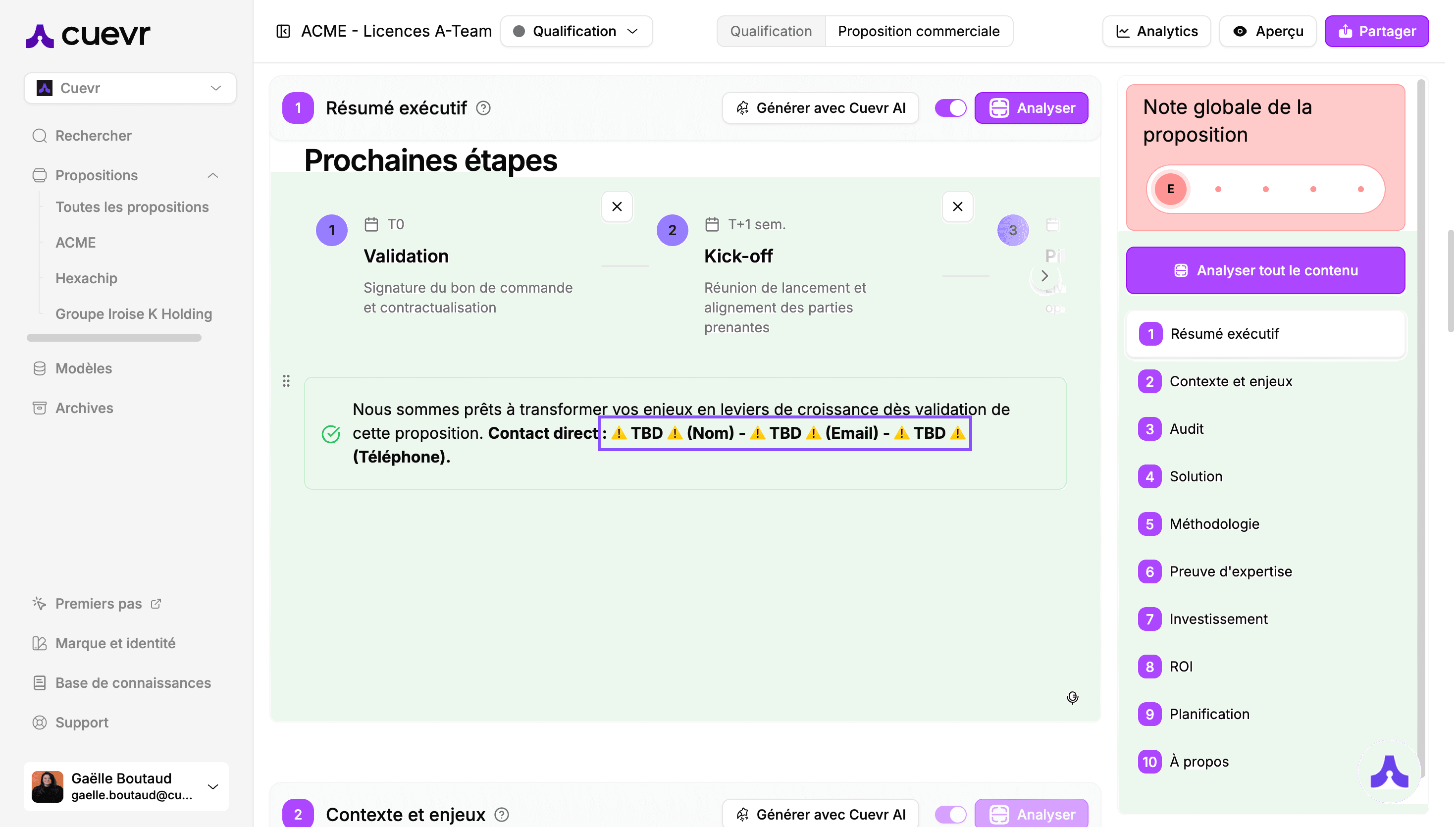
- "TBD" mentions (To-Be-Done): If this acronym appears, it means the AI needs specific information that it did not find in your Knowledge Base or in the qualification. Simply complete this section manually.
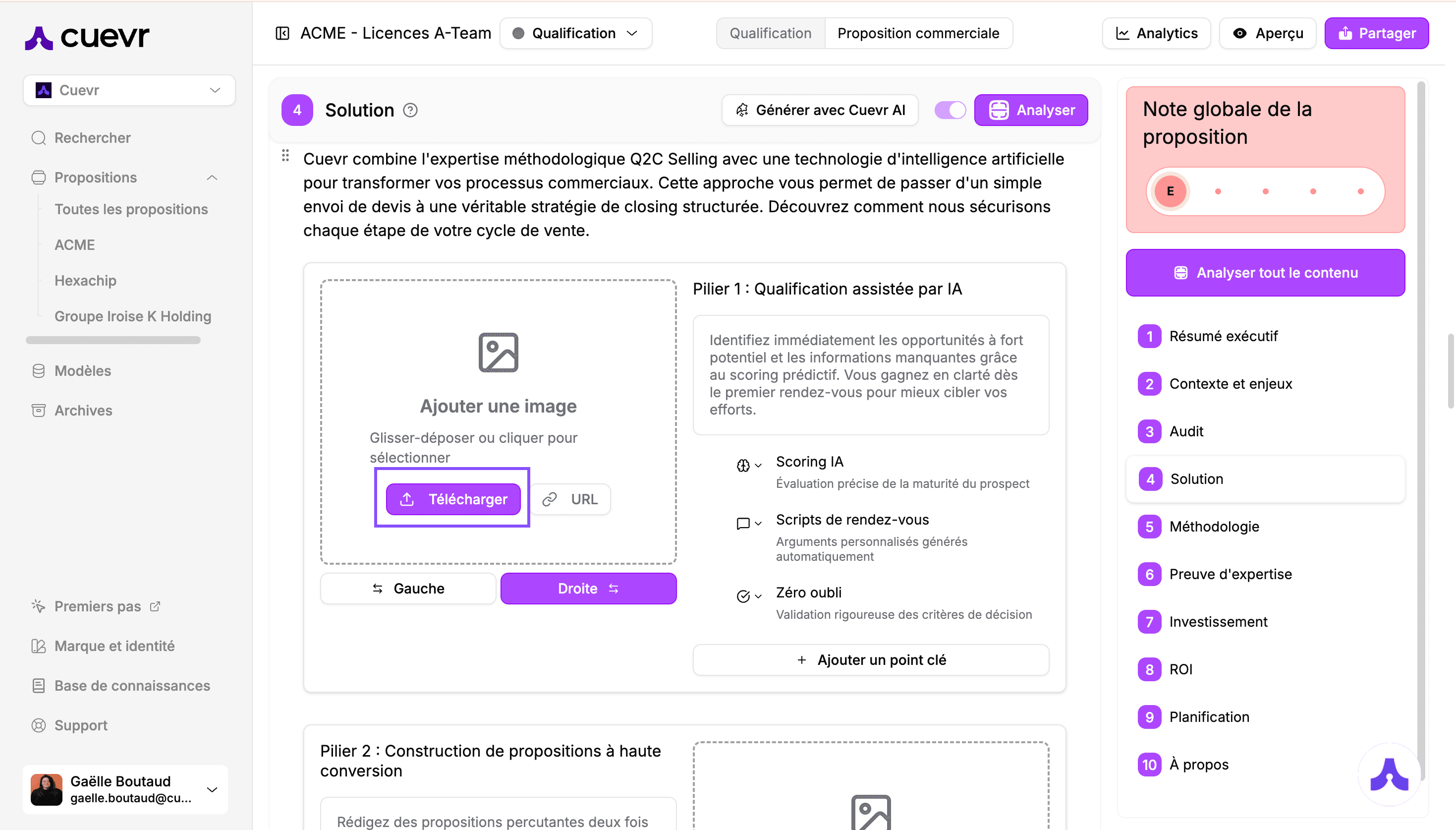
2. Image placeholders: Cuevr suggests spaces to illustrate your points. Click on "Upload" to import an image directly from your computer.
Write your text
You can write your text in the card for the desired section, starting with the part's title to guide the prospect in discovering your proposal.
Formatting options are available to structure your content and make it more understandable to the prospect who will read the proposal.
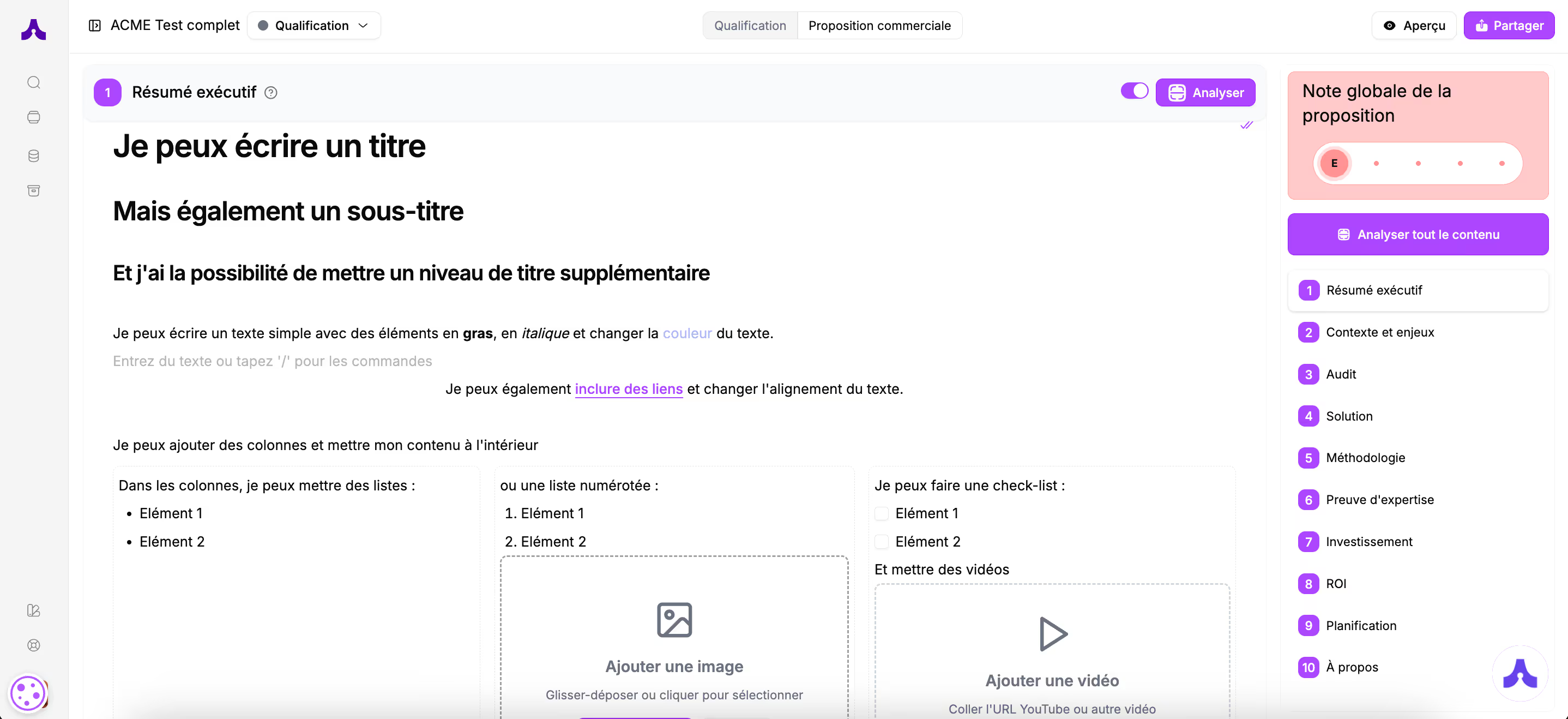
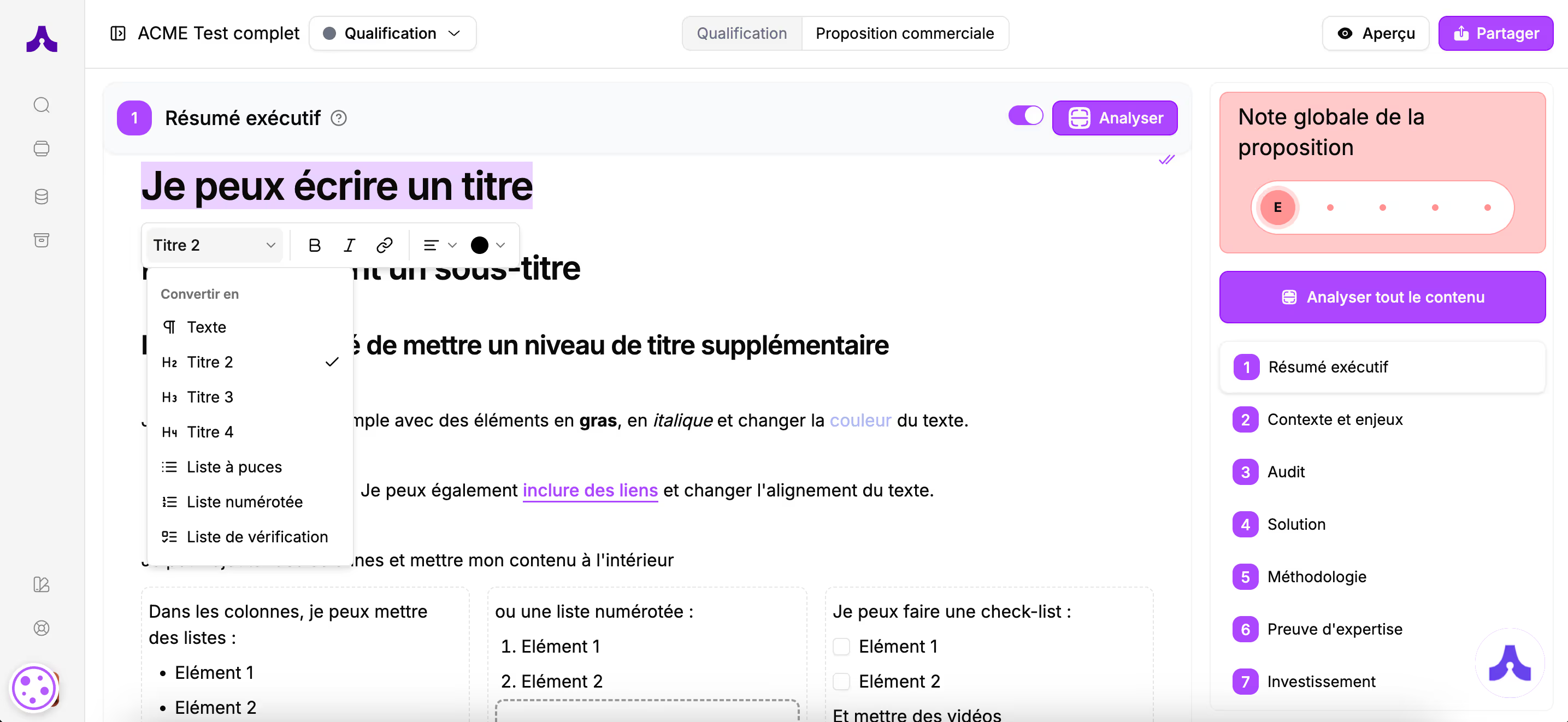
To choose formatting options:
→ Either you type: / and choose the desired format from the basic blocks, then write your text
→ Or, after writing your text, you select it and choose from the formatting options.
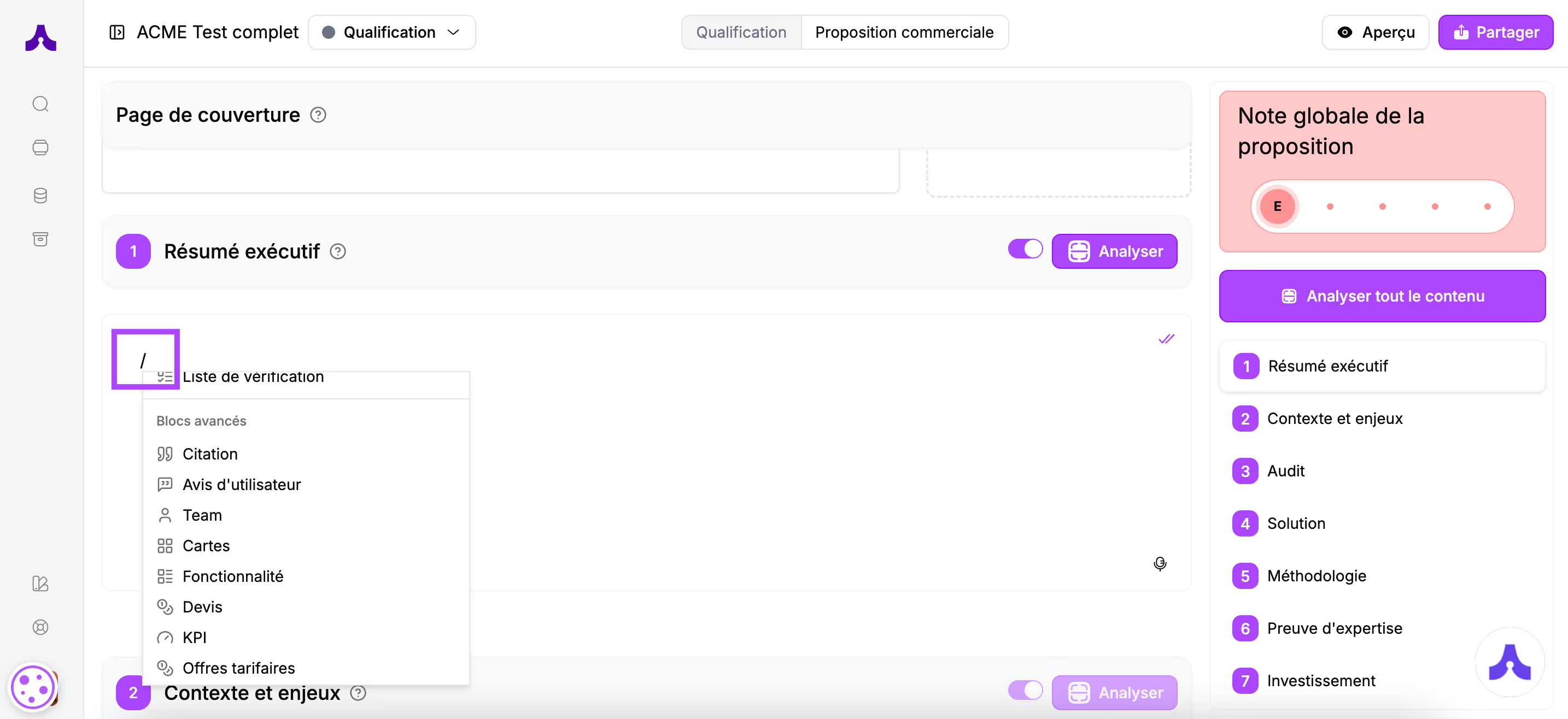
To make formatting easier and guide you in the content to write in your proposal, you will find more advanced blocks in this builder to construct your proposal.
To choose a pre-built block, type /
You will see the list of available blocks appear right after the basic blocks mentioned previously.
You can use as many blocks as needed in the different sections. The proposal's layout will adapt automatically
To avoid losing your prospect while they read the proposal, remember to add titles and, where appropriate, transition sentences between blocks.
It is also possible to use templates.
By default, you will find templates created by Cuevr experts, but you will also have the option to create your own templates.
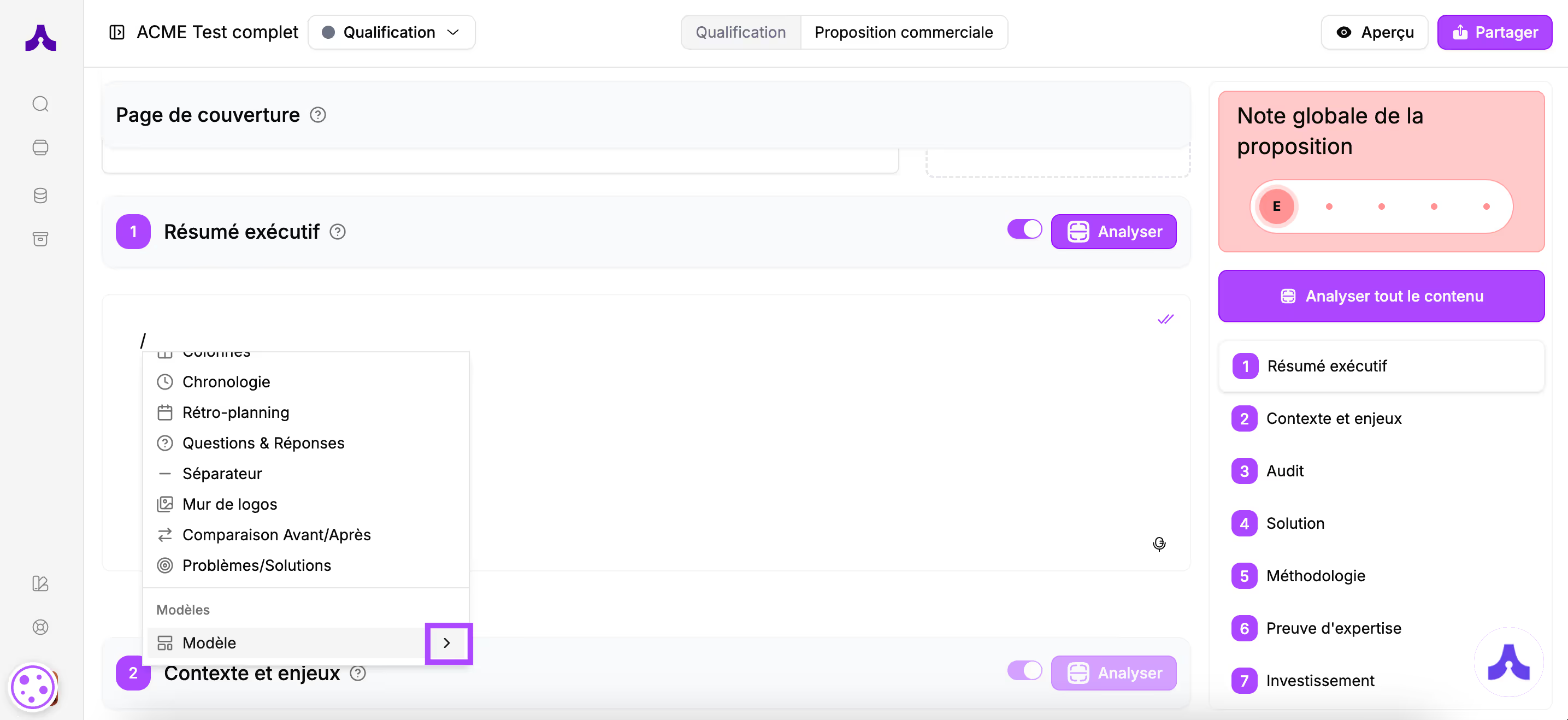
To use a template, type /
The templates are located at the very bottom of the drop-down list.